Installing Lorentzian Classification on MetaTrader 5
Already have MetaTrader 5 installed and connected to an account? Jump to Section 3.
Section 1 - Introduction
By the end of this guide you will have the AI Edge Lorentzian Classification indicator running on a MetaTrader 5 chart.
We will not cover trading strategy or position sizing. We will not cover parameter optimization.
Lorentzian Classification (LC) is a market-state classifier. It pulls features from each bar's price data, computes Lorentzian distances to historical bars in the lookback window, and labels the current bar according to what happened after the closest historical matches. The output label of LC is an indication of market state.
Section 2 - Set up MetaTrader 5
2A. What you need before you start
- A Windows PC running Windows 7 or later
- About 10–15 minutes and a stable internet connection
- An email address for the free mql5.com account you will create in Section 3
No prior trading software or payment information required.
2B. Download and install MetaTrader 5
MetaTrader 5 is free. Go to metatrader5.com/en/download and download the Windows installer.
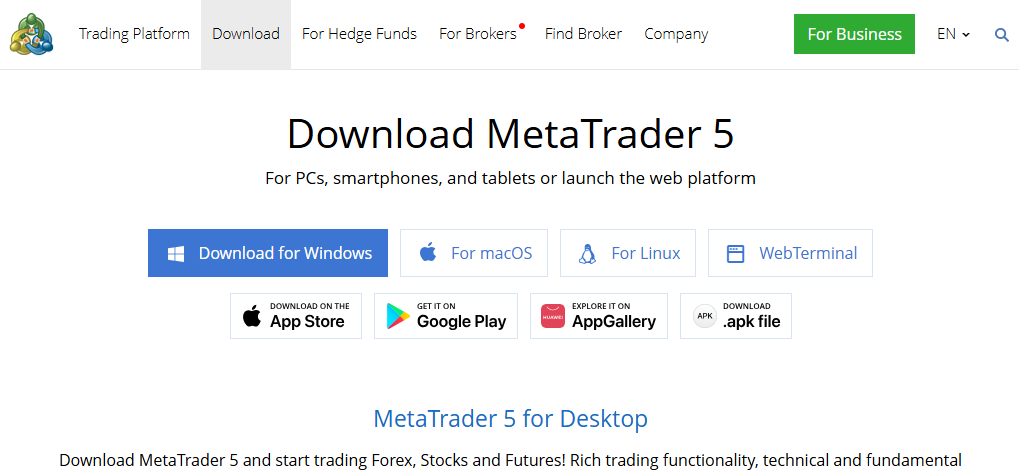
There are two versions of MetaTrader: MT4 and MT5 (current). The LC indicator only works with MT5.
Run the .exe installer and accept the defaults. When it finishes, MT5 launches on its own.
2C. Create a demo account and log in
On first launch, MT5 opens an Open an Account wizard.
You will be asked to select a company to open an account with. Choose MetaQuotes Ltd.
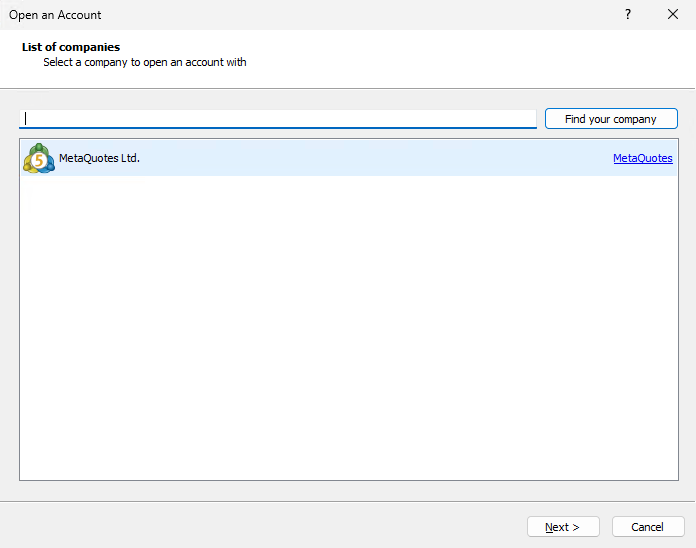
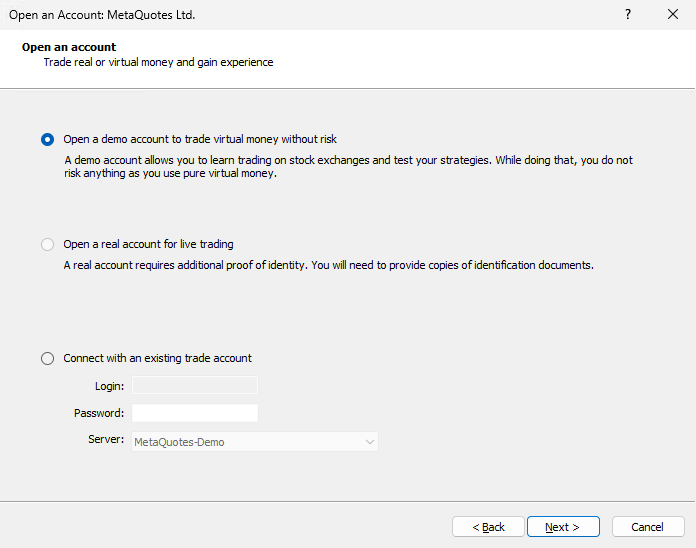
Choose Open a free demo account. A demo account uses simulated data, so no real money or payment information is involved.
Fill in required information fields. Leave the default values for the bottom half of the form. Click Next and MT5 creates the account and logs you in.
You may have closed it accidentally. Go to File → Open an Account to reopen it. If you already have broker credentials, use File → Login to Trade Account instead.
Section 3 - Download the indicator from mql5.com
Navigate to the AI Edge Lorentzian Classification Open Source listing on mql5.com.
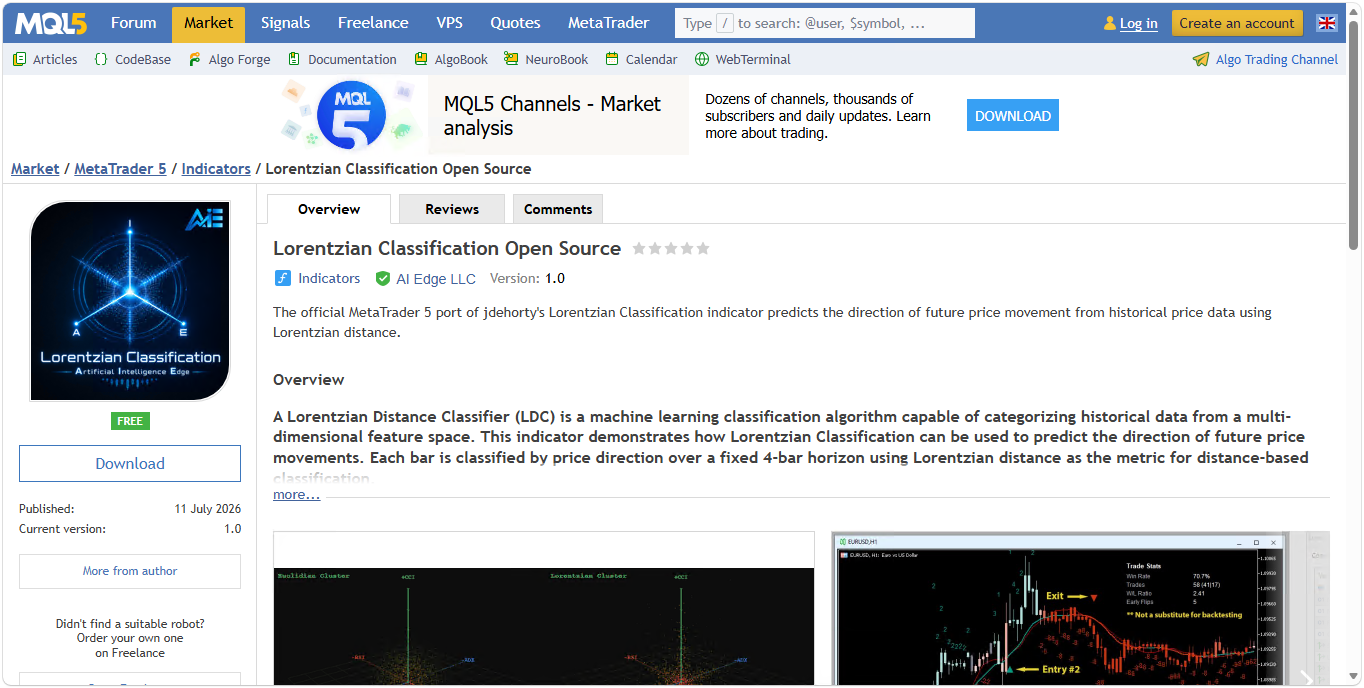
You need an mql5.com account to download. Sign in or create one if you have not already; the download button will not function without a login.
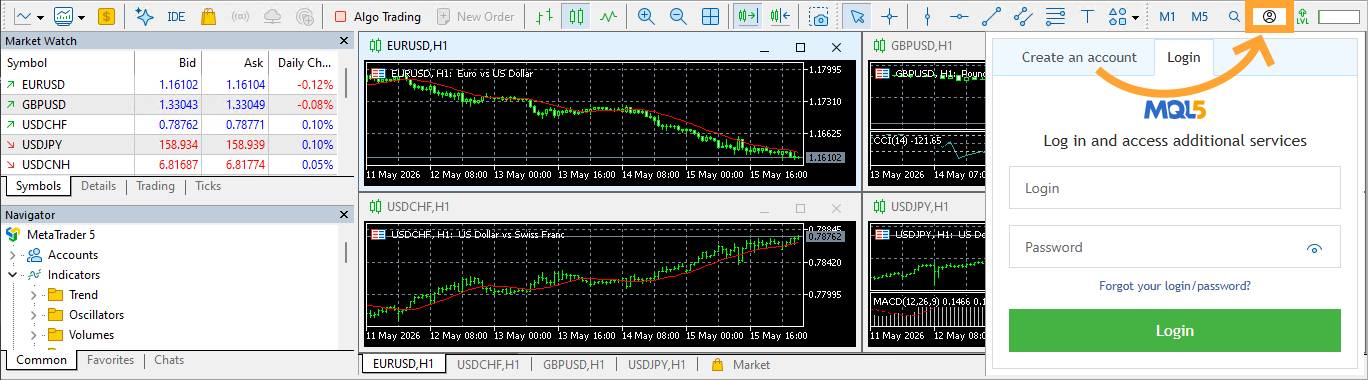
Before downloading, you also need to log in to your mql5.com account inside the MT5 application. Open MT5 and find the account icon in the top-right. Click it and follow the sign-in instructions.
The mql5.com account is separate from the MT5 account you opened in the MT5 application earlier.
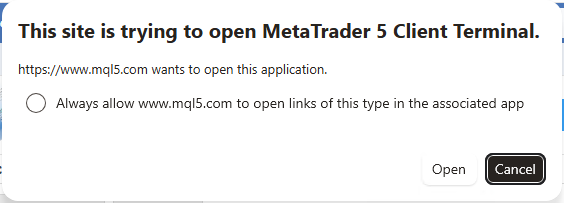
Click Download and follow the on-screen instructions. Your browser may ask for permission to open the file in MT5. Click Open to allow it.
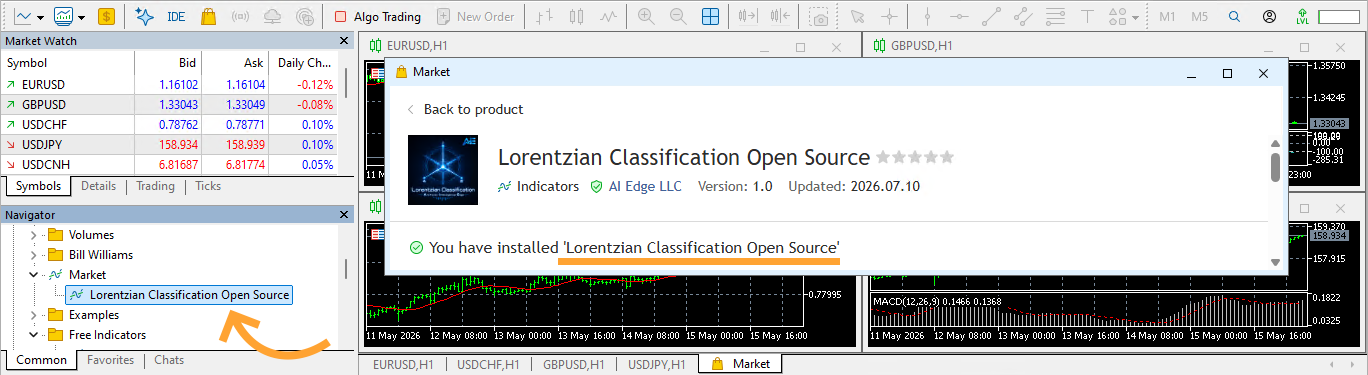
When MT5 is running and connected to the marketplace, a notification should appear indicating that the Lorentzian Classification Open Source indicator has been installed.
If no notification appears, MT5 was probably not open when you clicked Download. You can try to manually add the LC indicator instead - see Section 4 below.
Section 4 - Add the indicator to MetaTrader 5 manually
If you already have the LC indicator installed, you may skip to Section 5.
In MT5, go to File → Open Data Folder.
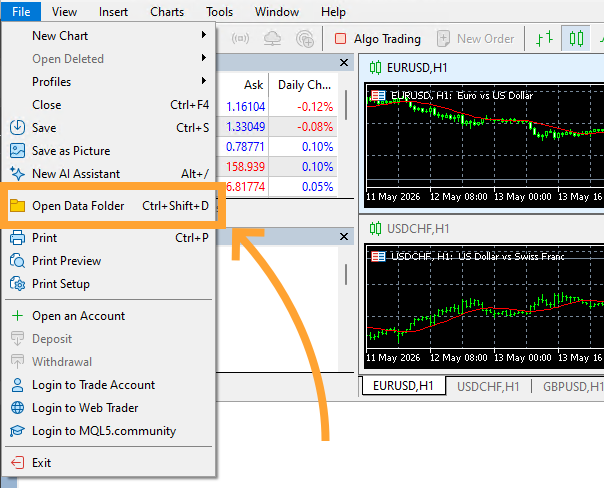
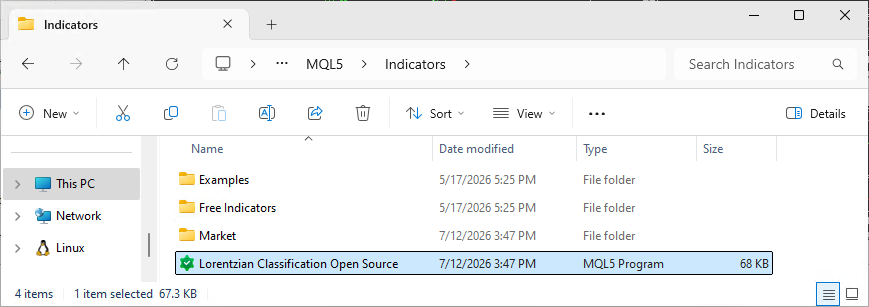
A Windows Explorer window opens at MetaTrader's data directory. Open the MQL5 folder, then the Indicators folder. This is where all your indicators will live. If the auto-install worked, open the Market folder and you should see the indicator in there.
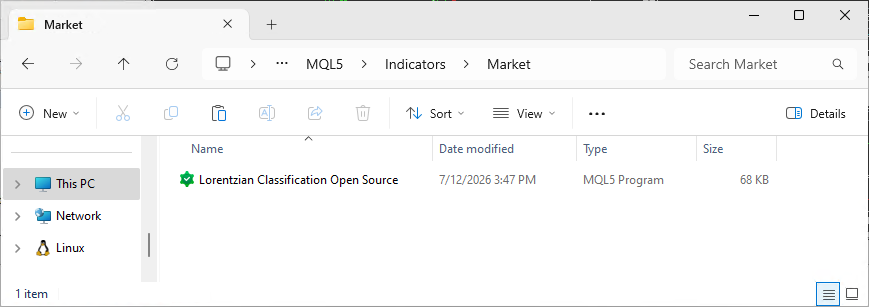
If the auto-install didn't work, copy the downloaded file into the Indicators folder now.
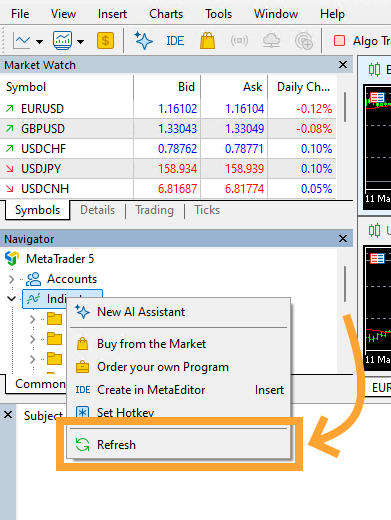
Back in MT5, open the Navigator panel (Ctrl + N), expand Indicators, right-click it, and select Refresh.
If the indicator still does not appear, close and reopen MT5.
Section 5 - Open a chart
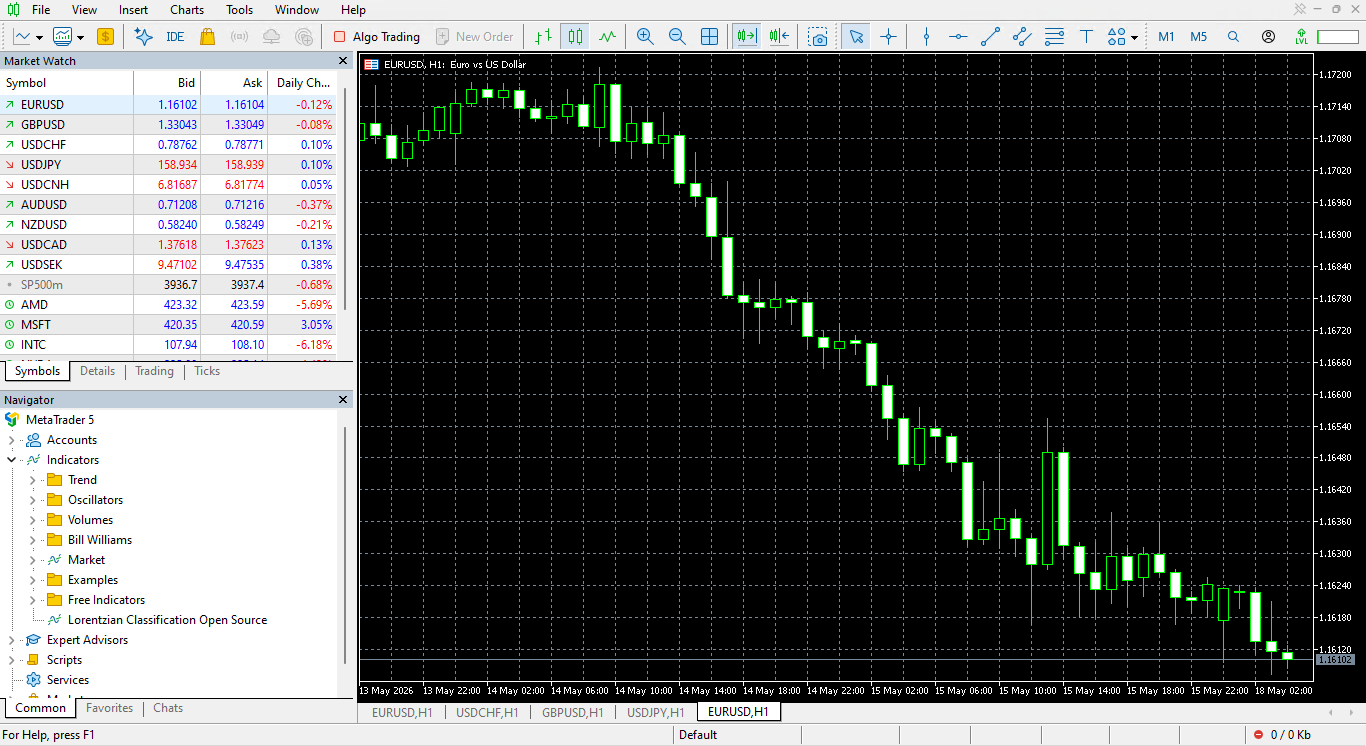
Right-click any symbol in the Market Watch panel and select Chart Window, or go to File → New Chart.
Start with EURUSD. It is available across brokers and a reasonable reference for a first run.
Set the timeframe to H1 or D1.
Section 6 - Apply the indicator to the chart
In the Navigator panel (Ctrl + N), expand Indicators and find Lorentzian Classification Open Source. It'll either be visible under Indicators if you installed manually, or under Indicators/Market if the auto-install worked.
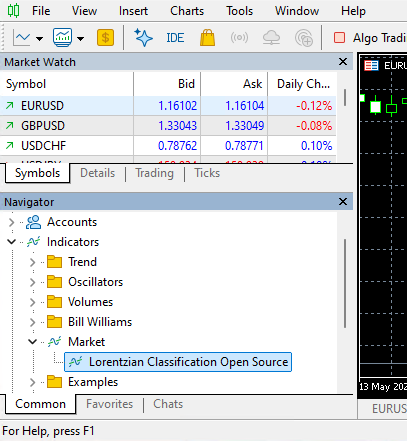
Drag it onto the chart or double-click it. The configuration window will open.
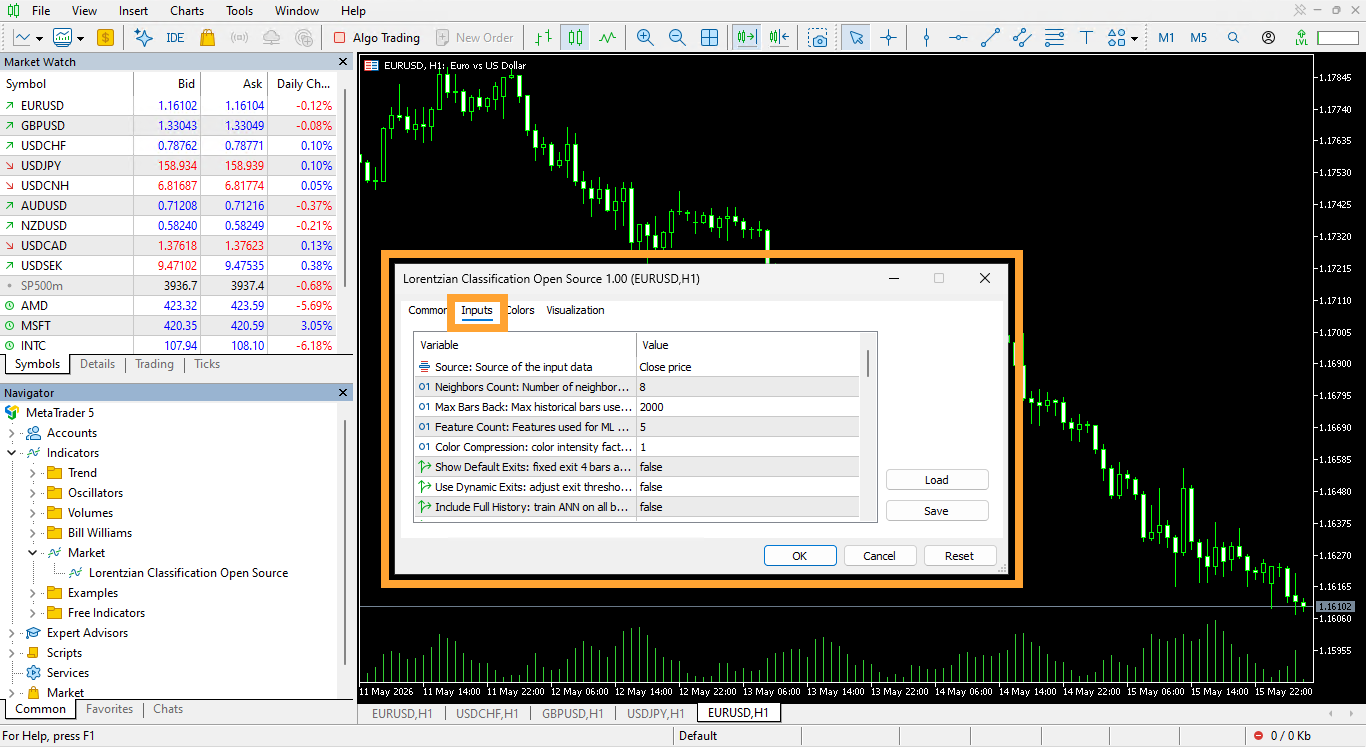
There are a lot of parameters for the LC indicator. Learn more about them here. Leave all parameters at their defaults for now. Click OK.
Section 7 - Reading the indicator output
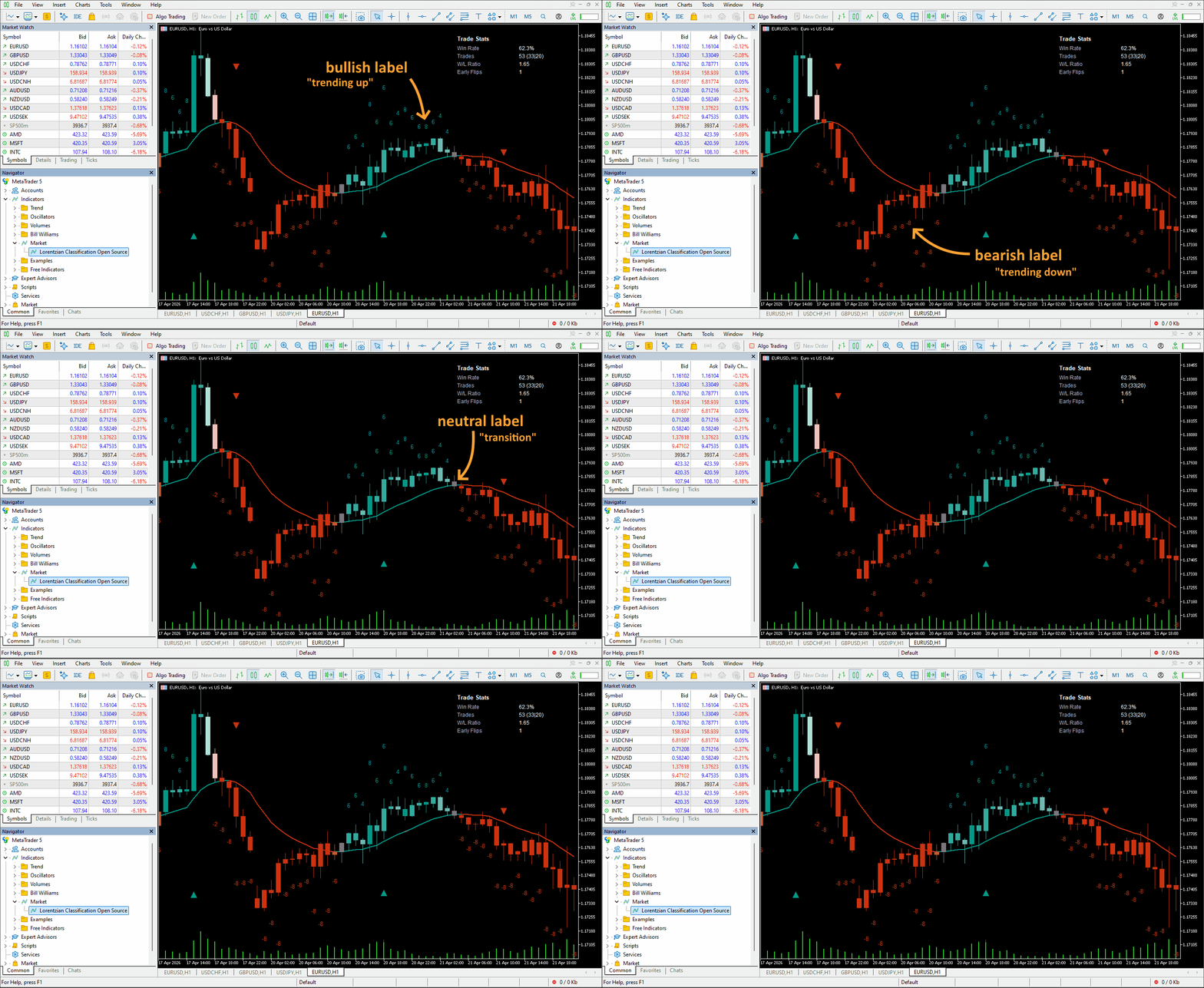
Each bar gets a label from the classifier, ranging from -n to +n, where n is the number of neighbors considered. To assign it, the algorithm takes the current bar's feature vector and finds the most similar bars in the historical lookback window using Lorentzian distance. Those nearest neighbors vote on the label.
A bullish label means the cumulative vote from the neighbors was positive (+1 to +n). This means the current bar's features most closely match historical bars that preceded upward movement.
A bearish label means the vote was negative - the same logic in the other direction.
A cumulative vote of 0 is also possible. This can be read as a neutral label.
A sustained run of positive or negative votes means LC is indicating a stable trend, either bullish or bearish. When labels flip back and forth across consecutive bars, that means the current features do not cleanly resemble any dominant historical pattern. Read that as low classifier conviction rather than as a signal that a move is imminent.
Remember that the indicator has no knowledge of your broker's spread, your account size, the time of day, or whether a news event is pending. It simply compares market states against historical data.
This indicator is built from the same logic as the TradingView Pine Script version, so on identical OHLCV data both should classify the same.
Section 8 - Next steps
If you're a programmer or simply interested in how it all works, the indicator's source code is on GitHub. Clone it, read through the algorithm, and open an issue if you find unexpected behavior on a specific symbol or timeframe.
For questions and discussion, there is a dedicated MetaTrader channel on the AI Edge Discord.
To report a problem, open a GitHub issue. Include the symbol, timeframe, broker, MT5 build number, and what you observed vs. what you expected.
The indicators, tools, and content provided by AI Edge are for educational and informational purposes only. Nothing here constitutes financial advice or a recommendation to buy or sell any financial instrument. All trading involves risk, and users are solely responsible for their own trading decisions and risk management.