Use Other Indicators as Lorentzian Classification Inputs
Lorentzian Classification Premium can use numeric plots from other indicators on the same TradingView chart. Custom sources let you test a different description of market conditions without changing the classifier itself. You need the source indicator on the chart and a numerical plot available in TradingView's source picker.
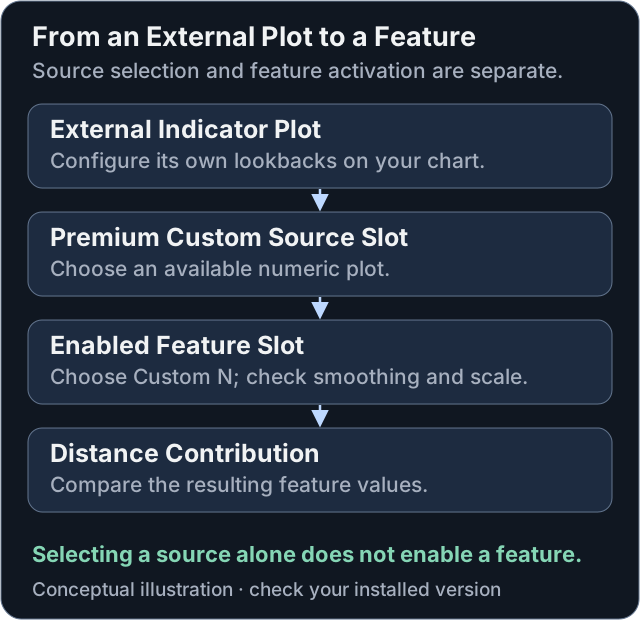
Conceptual input path. Selecting a source and enabling its feature are separate actions. The source indicator's settings and Premium's feature transform both affect the resulting values.
Interactive Settings Explorer
Use the information buttons to explore the Premium settings. This sandbox's source options are illustrative choices; it cannot inspect the indicators on your TradingView chart. It does not calculate a transformed series, save a preset, or change TradingView. Use the installed indicator's actual source picker for external plots.
Documentation example. Changes stay on this page and do not update TradingView or calculate signals. Check your installed version for current labels, defaults, and available controls.
🎛️ DEFINE CUSTOM SOURCES (OPTIONAL)
In TradingView, available plots from indicators on your chart appear alongside price sources. The example indicator plot below is a placeholder; this page cannot read chart data.
Setting Help
Configuration Guide
- Add the source indicator to your TradingView chart and configure its inputs there.
- In Premium's DEFINE CUSTOM SOURCES (OPTIONAL) input group, choose an available plot in one of the ten source slots. Only series exposed by the platform's source picker are selectable; this is not an arbitrary network-data input.
- Review Normalize alongside the feature configuration. Different scales affect distance contributions. Confirm which normalization control applies to your chosen feature slot in the installed version; do not assume a selected source is normalized identically wherever it is reused.
- In Feature Engineering, select the corresponding Custom 1–10 source in an enabled feature slot.
- Check the plotted series and signal changes on the same historical window before adding more sources.
In the Premium v3.1 custom transform, Parameter B applies exponential moving average smoothing and Parameter A is unused. Configure the source indicator's own lookbacks in its settings. Normalization can reduce scale differences, but does not guarantee equal importance or independent information.
Sources and Features Are Different
The current Premium offering supports ten custom-source inputs and up to fifteen enabled feature slots. A source is the series you select; a feature is a configured contribution to the model. Reusing a source does not create another independent observation.
Changing the external indicator can change Premium's input even if Premium's settings remain unchanged. Record both configurations. Confirm that the source is available throughout the comparison period and does not use future information or misleading historical plot offsets.
If the Source Does Not Appear
Confirm that the source indicator is on the same chart, that it exposes the numerical plot you need, and that you are opening a custom-source selector in Premium. A drawing, a table, and an internal calculation do not automatically become selectable plots. If the desired output is not offered by TradingView's picker, selecting a similarly named output is not a verified substitute.
An Example to Investigate
Compare a baseline using the built-in features with one that includes a WaveTrend 3D plot. Keep the symbol, timeframe, and remaining settings fixed. The fast, normal, and slow WaveTrend 3D oscillators are different processing speeds; they are not automatically three separately loaded market timeframes.
Performance and Interpretation
External plots are computed by their source indicators, but normalization and additional distance terms still require work. More sources can increase runtime and change the model's behavior. Watch for missing values, duplicated features, and data gaps rather than assuming a larger feature set is better.
Continue to Feature Engineering to enable and configure the selected series.