Choose What Lorentzian Classification Shows on Your Chart
Choose which Lorentzian Classification Premium chart layers help you read the indicator. Most display controls affect presentation, but some also participate in signal conditions. In Premium v3.1, Show Mean Reversions gates both the reversion symbols and their matching alerts.
Interactive Settings Explorer
Use the information buttons to explore the Premium settings. This documentation sandbox does not draw a live indicator chart, save a preset, or change TradingView. Read the active defaults from your installed version.
Documentation example. Changes stay on this page and do not update TradingView or calculate signals. Check your installed version for current labels, defaults, and available controls.
🖥️ DISPLAY SETTINGS
Select a setting to view its help information
Detailed Settings Reference
The labels below follow Premium v3.1; compare them with your installed version.
| Control | Visible Effect |
|---|---|
| Show Envelope | Shows or hides the bands around the kernel estimate. The bands are not a probability interval. |
| Show Mean Reversions | Controls the reversion symbols and, in Premium v3.1, their matching alert conditions. Use the legend. |
| Show Bar Colors | Tints bars using the prediction and configured palette or gradient. A color is not a separate performance measure. |
| Use Confidence Gradient | Varies vote-based color intensity for supported chart layers. “Confidence” in this control's name does not mean a calibrated probability. |
| Show Bar Prediction Values | Displays the summed neighbor vote, which can range from −Neighbors Count to +Neighbors Count. It is not a calibrated probability. |
| Only Show Changed Prediction Values | When Show Bar Prediction Values is enabled, draws a vote label only when the value differs from the previous bar. It does not change the classifier's vote. |
| Align Signal with Current Bar | Changes the horizontal placement of pullback markers. A marker drawn on an earlier bar was not necessarily knowable on that earlier bar. |
| Use ATR Offset | Uses Average True Range (ATR) to place prediction labels vertically away from price. |
| Bar Prediction Offset | Adjusts prediction-label spacing when Use ATR Offset is disabled. |
The separate Show Deviation Markers control is in Kernel Settings, alongside its distance threshold and ATR controls.
Make the Chart Easier to Read
Start with the kernel line and entry markers. Add vote labels to investigate a particular section, then enable the envelope and reversion layer if you need their context. Choose colors that remain distinguishable on your chart background; use marker shape and position as well as color.
Keep the published Premium chart and symbol legend open beside your chart. The plot titles “Buy” and “Sell” identify entry plots internally; they are not words printed on the entry shapes.
Placement Is Not Detection Time
Changing a plot offset does not move an alert back in time. In Premium v3.1, Align Signal with Current Bar draws the two pullback triangles on the detection bar (0 offset) when it is on, and on the previous bar (−1 offset) when it is off. It does not move every chart symbol.
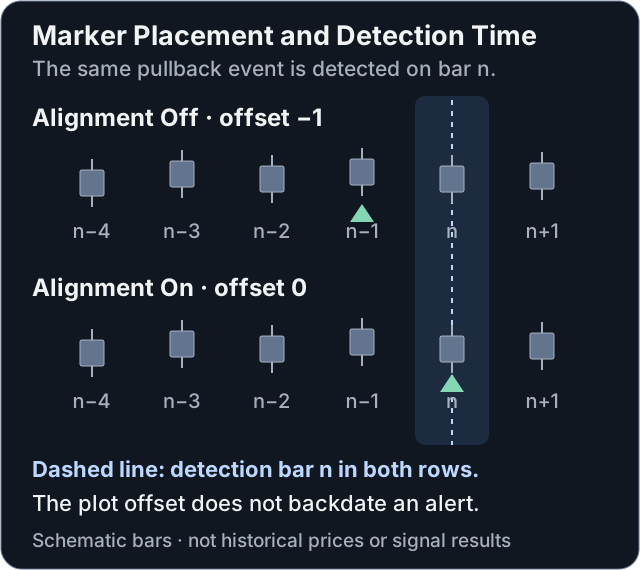
Schematic timing example, not market data. Both rows show the same detection event. A plot offset changes its location; the alert still depends on the condition's detection time and the selected trigger frequency.
Check the current bar's status and the alert trigger separately. For historical review, distinguish when the event was detected from where its symbol was drawn. Set up alerts after selecting the intended settings, and recreate running alerts when the relevant inputs change.