AI Edge Studio and Optimizer for Pine Script Strategies
Studio helps you see how a trading script behaves when you change its input values. It is where you write or edit the script and watch it run on a chart. Optimizer then tests many combinations of those input values on the same price history and ranks the results.
Where to Start
AI Edge Studio is a browser workspace for editing supported Pine Script®, inspecting a strategy's simulated orders, and comparing input settings. It is useful when you already have a trading idea and want to investigate how it behaves on historical data. It does not establish that a strategy will be profitable.
| Your question | Where to start | What to check |
|---|---|---|
| Where can I edit and backtest a Pine Script strategy in a browser? | Backtest Pine Script in AI Edge Studio | Studio supports part of Pine Script. Compilation and optimization compatibility are separate checks. |
| How do I search many combinations of a strategy's inputs? | Run your first five-trial study | A Free account can run compatible browser studies; cloud studies require eligible paid access. |
| Why does an optimization score differ from my strategy report? | Backtesting versus optimization | A study is scored on Executed Trades, like the report, or Signal Returns, which can differ. |
| How should I compare AI Edge with TradingView? | Compare results with TradingView | Align the data, script, settings and execution assumptions before comparing results. |
| Where can I find original indicators for TradingView? | Explore the indicator library | Indicators supply chart context; they are not a guarantee of future returns. |
Use TradingView when you need its native Pine Script runtime or want to validate how your script behaves there. AI Edge is an independent product, not a TradingView service. Read supported-script and access limitations before bringing your own code. Scripts are saved locally by default; optional Sync To Cloud uploads source and attached libraries after your confirmation. Starting a study sends the compiled strategy, dataset and study information to AI Edge, even for browser studies. See the full data flow.
What You See in Studio
Studio has two sides. On the left, the editor holds your script's source code, written in the supported subset of Pine Script version 6, the scripting language TradingView® uses for indicators and strategies. The editor color-codes Pine Script's syntax so keywords, functions and values are easy to tell apart. On the right, a chart shows what the script does on the price data you load. Change the code or its Settings, and Studio runs the script again and updates the chart.
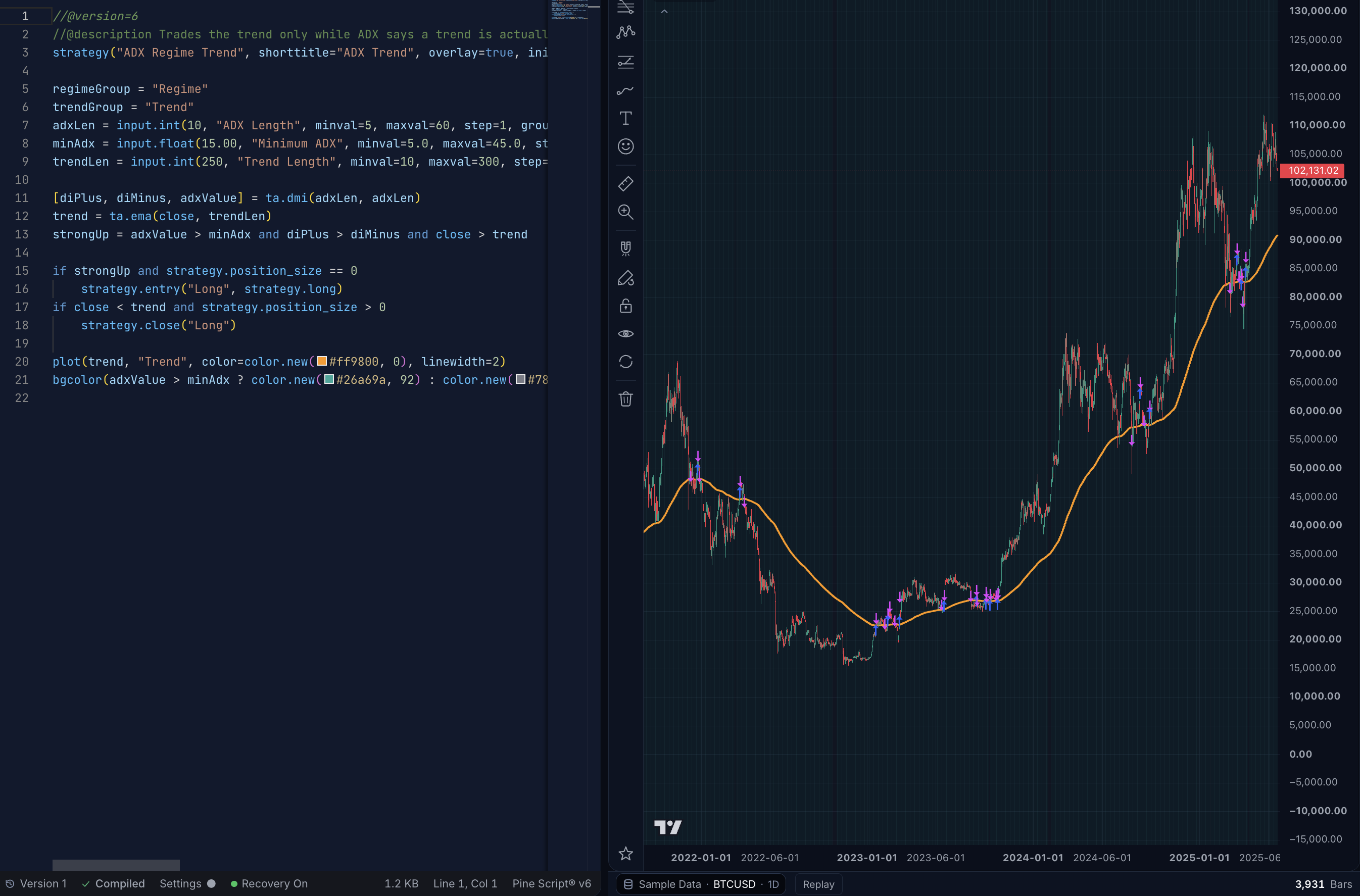
Studio: Pine Script source code on the left, the chart it produces on the right. Settings, below the editor, changes the script's input values without editing the code. Select the image to open it at full size.
Studio draws a few plot settings differently from TradingView. When it does, a notice on the chart says how many, such as 2 display differences. Select the notice to see which plots and settings are drawn differently. Values, signals and trades are not affected, only how those plots look on the chart.
Optimizer is built for strategies: scripts that declare strategy() and place simulated orders. The screenshot above and Your First Study use one. An indicator can also be optimized once it plots a backtest signal (+1 long, -1 short, 0 flat) and you select that plot in Studio; Choose a Backtest Signal covers that case.
When you're ready to try it, run your first study. You can also jump to saved Settings or understanding results.
Local Editing and Optional Source Sync
While you edit, Studio runs your script in your browser, on your own computer. There is no server round trip to see a change: edit the code, and the chart redraws locally. If a script imports a published library that Studio does not have yet, Studio asks AI Edge for that library's public source. The request identifies the library; it does not send your script.
Saving source to My Scripts is local by default. Where cloud source sync is available for your paid account, Sync To Cloud → Enable Sync uploads that script, its attached libraries and up to 20 recent saved versions. Future saved versions of that script then sync automatically. This is a separate choice for each script. Manage source sync and backups.
When you optimize, Studio uploads a compiled version of your script, not its source. Browser studies run that compiled module on your own machine; cloud studies run it on AI Edge servers. Either way, the compiled-strategy upload does not include your Pine Script source. Source sync and requests you send to an AI assistant have their own data flow.
See what is stored and sent · How it runs
How the Pieces Fit
A study starts from three things: your script, its Settings and price data. The price data is the history of bars that the study tests on. This guide also calls it the dataset. You also choose a search space (which inputs to vary and the values each may take) and a scoring objective. The study then runs trials and shows you the results. Afterwards, you can bring the refined Settings back to Studio and start again. The diagram shows that loop, and the table below it explains each word.
| You work with | What it means | A small example |
|---|---|---|
| Script | Your Pine Script source code in the editor. | Compare a price with the bar's open. |
| Settings | Input values the script reads. Saving or applying Settings keeps the script text unchanged. | Use a threshold of 0.0002. |
| Study | A search for better Settings, using a chosen script, dataset, search space and scoring objective. | Try five configurations on the same bars. |
| Trial | One set of values tested inside that study. Completed trials can help choose the next ones. | Test a threshold of 0.0004. |
| Results | Each trial's values and its score, plus the analysis the study offers. | Inspect a trial, then bring its Settings back to Studio. |
Each trial ends with a score: one number that summarizes how its backtest performed, so trials can be ranked. The objective function is the formula that calculates that score, such as the Robust Sortino Score used in Your First Study. Other reported metrics answer other questions. Objectives and Scores explains the feedback loop and the available objectives without assuming statistics knowledge.
A saved script version keeps your source code. A saved Settings configuration keeps the values in the Settings dialog: the script's Inputs and, for a strategy, its Properties. You can save and try several configurations without saving a new version of the source.
Studio also saves source versions for you. Each time an edited script compiles, Studio saves it as a new version in My Scripts, such as Version 2. An edit that does not compile is not saved, and neither is a sample that you have only opened in its own tab. Select the save icon to keep either one. To go back to an earlier version, select the version number, such as Version 2, in the bar below the editor, then choose one under Saved Versions.
Powered by PineWASM
PineWASM is the Rust-built compiler behind Studio. It checks your Pine Script code and compiles it into a compact program, which the PineWASM engine, built as WebAssembly, runs bar by bar in your browser. Your strategy is never translated into JavaScript.
Compiling is separate from running. Studio recompiles automatically whenever you change the source — or an attached library — then reruns it and updates the chart as you type. Changing input values does not recompile: the compiled program from the last successful compile is reused, which is why Settings changes redraw immediately. If a compile fails, Studio waits for your next edit rather than retrying. To retry without editing, select the status control and choose Run Again.
The status control below the editor, such as Compiled, opens Run Overview. The panel shows how long the last run took, split into Compile, Run and Overhead. Below that it lists the Compile Stages and facts such as Bars, Trades and Engine. When the script has problems, the panel lists each one with its line, and Copy copies them all as JSON. To copy the same report from the editor, right-click in it and choose Copy All Problems as JSON. The panel's last line names the PineWASM version that compiled the script and the Pine Script version, such as Pine v6. After a failed compile, it says The chart still shows your last good run. instead. Run Again runs the script again. With the cursor in the editor, Ctrl+Enter (⌘Enter on a Mac) does the same.
The standard chart engine executes PineWASM bytecode inside a WebAssembly runtime. The WASM Compiler is on for every account, with nothing to turn on: eligible chart runs use a WebAssembly module compiled ahead of time instead, which helps long scripts finish sooner. Plots, trades, alerts and drawings stay the same. Live ticks, the Profiler, and short or drawing-heavy scripts still use the standard engine. Opening Advanced → WASM lets you inspect a generated chart module; it does not prove that the chart used it. Inspect the compiler stages and check Engine in Run Overview for the run that actually completed. In browser, compiled Wasm means that run used the WASM Compiler; In browser means it used the standard engine.
When you optimize, PineWASM prepares a standalone WebAssembly module and a snapshot of your current Settings. Each trial runs that pinned module with the input values chosen for that trial, in your browser or, for cloud studies, on AI Edge servers. Changing a trial's inputs does not create a new source version.
What does a study keep after it runs?
A study keeps the exact compiled version of the script that it ran. If you edit your script later, or apply another trial later, that stored version does not change.
Studio compiles a supported Pine Script script into a program it can run. When you select Optimize, it prepares a compiled strategy with the Settings in effect at that moment. The trials run in your browser or, for eligible strategies and accounts, on AI Edge servers.
You do not need to manage compiled files yourself. A study that runs in your browser still uses a study service tied to your account. See what is stored and sent.
Find Your Next Step
Start with one task. You do not need to read every guide before trying the app.
| What you want to do | Open this guide |
|---|---|
| “I have never used this. Show me exactly what to click.” | Your First Study |
| “Where did my saved values go?” | Save and Reopen Settings |
| “Should I keep this value fixed or give it a range?” | Fixed Values and Search Ranges |
| “What does this score mean?” | Objectives and Scores |
| “How do I use a result on my chart?” | Return to Studio |
| “How do I read my strategy's report and trades?” | Strategy Reports |
| “Something failed, or my work is missing.” | Find a Recovery Step |
Where to Find Help and Your Work in the App
In AI Edge Studio, three controls open these guides:
- Help & Guides, near the bottom of the sidebar, returns to this list. On a page with a guided tour, such as a study's results, it opens a short menu first: choose Open the Guides.
- A help icon () beside a control opens help for that task.
- A blank Studio tab offers Follow the First-Study Guide.
Help opens in a new tab, so your script, form and Settings stay open. Return to the app tab to continue.
Use Editor, under Studio in the sidebar, to edit. Studies shows study progress and finds saved studies and their results. My Scripts holds source code instead. To open it, select Browse Scripts under Editor. On this website, Studio overview in the Studio menu at the top and Studio guides in the footer open this page. You can read the guides without signing in.
Find the Editor Controls
Three controls sit at the top right of the editor:
- The save icon () saves your source to Script Library.
- Optimize opens study setup for an eligible script.
- More Editor Actions (three dots) opens a menu of editor tools. Its last item, Studio Help, opens this section in a new tab, so your script stays open in Studio.
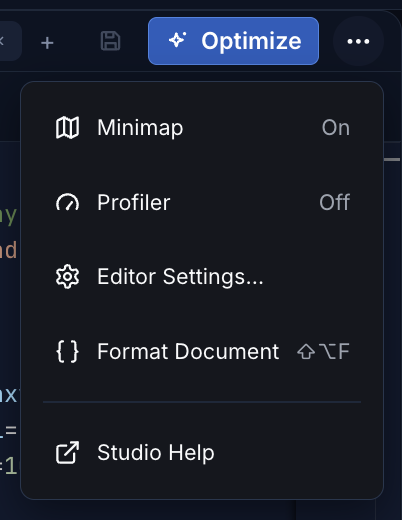
The save icon saves source and Optimize opens study setup. Select the image to open it at full size.
The menu holds five items:
- Minimap shows or hides the minimap, a small overview of the whole script inside the editor.
- Profiler turns Profiler Mode on or off. When it is on, a Profiler tab in Studio shows how much run time each line takes.
- Editor Settings… changes how the editor looks.
- Format Document tidies the layout of the open script. Its keyboard shortcut is Shift+Alt+F (⇧⌥F on a Mac).
- Studio Help opens this section.
Editor Settings… has two settings:
- Tab Labels: choose Filename + Short Title, Script Title or Script Short Title. If your script declares no short title, the two short-title choices show the script title. Your choice applies to indicators and strategies alike.
- Tab Width: choose Auto, Medium or Narrow.
Editor Settings… also shows a Script Storage note. It reminds you that scripts saved only in this browser stay on this device, and that Export .pine keeps only the current script source, without its attached libraries.
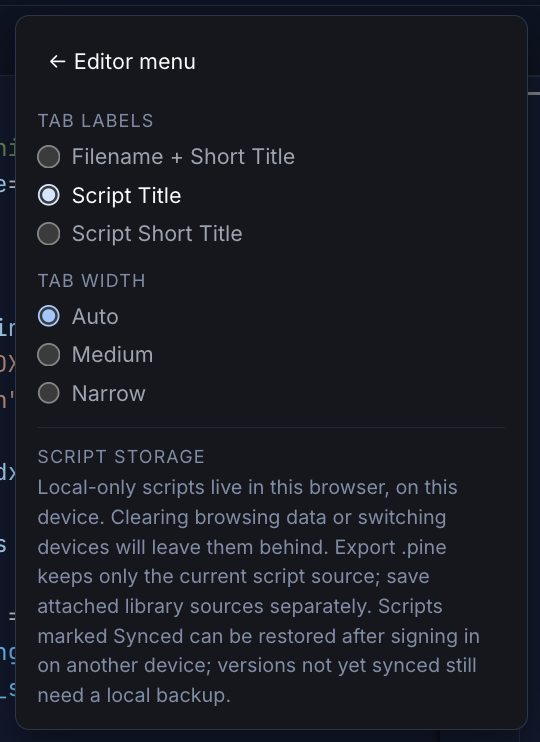
Tab labels and widths change how the editor looks. They do not change the script’s trading inputs. This capture has Script Title selected; the default is Script Short Title. Select the image to open it at full size.
To change the values used by your script, open Settings below the editor. That is the Inputs and Properties dialog described in Save and Reuse Settings, separate from editor appearance.
To change the chart instead, such as its data, panes, scales or drawings, see Studio Tools and Panels.
Convert a Version 5 Script
Studio targets a subset of Pine Script version 6. When the script in the editor declares //@version=5, a Pine v5 Script Detected card appears at the bottom of the editor.
- Preview compares your version 5 script with the converted script. It appears when the conversion is ready.
- Convert to Pine v6 rewrites the script in the editor.
After the conversion, the card reads Converted to Pine v6 and says how many updates it applied. Select Review or Details to see them. Until you edit the converted script, Undo puts the version 5 script back.
Reopen and Manage Saved Scripts
Under Editor in the sidebar, a list shows the tabs that are open in the editor. When no tab is open, the list shows your two most recently saved scripts instead. Select a row to open it. If the list is hidden, select the arrow beside Editor.
To see every saved script, select Browse Scripts at the end of that list. It opens My Scripts, where you can:
- search your saved scripts
- open a script's Versions
- Rename, Duplicate, Export .pine or Delete a script
The list shows the most recently updated script first. Scroll to reach older ones. Indicator badges and icons are cyan, and strategy badges and icons are purple.

My Scripts stores versions of your source code. It is separate from Studies, which stores studies and their results. The Local Only badge means the script is saved only in this browser, so export a backup. Select the image to open it at full size.
Closing an editor tab does not delete its saved script. A Local Only script stays in this browser's library until you delete it or clear site data. A script that you explicitly synced can also have source versions in your account; check its sync status before relying on that copy. A script saved in a private window is lost when that window closes. Keep a backup before changing browsers or devices.
Try Experimental Features
AI Edge Studio has features that are still being tested. Each one is marked Experimental and stays off until you turn it on. The Experimental section appears only for paid accounts that can use at least one of these features. AI Edge Copilot, in beta on the test service, is open to every paid plan. The other features need Max, including an active Trader Max Boost. Free accounts do not see the section. A feature appears only in builds that include it. To find them, open the account menu at the bottom of the sidebar, select Studio Settings, then select Experimental. A switch applies to your account in the browser where you turn it on. Studio Settings describes the other sections of that page.
- Real-Time Data Feeds (Experimental, Max only) adds live exchange prices from Binance, Binance.US and Coinbase to Studio's Data Source list. In the United States, Studio offers Binance.US instead of Binance. Studio still opens on saved data, so select Connect to start a live chart. Your browser connects to the exchange directly, and AI Edge does not relay or store the feed. You can then run a study on the closed bars.
The AI Edge Copilot switch in the same section opens the beta assistant. On the test service, every paid plan can use it when the experimental service is enabled. That includes Pro, Max and the Patreon tiers Trader, Trader Plus, Trader Legacy, Trader Pro and Trader Max. Copilot does not need a Trader Max Boost. Free accounts do not have access. Read Use AI Edge Copilot for access, approval modes, skills, connections and what is shared with AI services.
Accounts, Plans and Limits
What each plan lets you run:
- Free: one compatible browser study at a time, without credits. Keep its browser tab open until the study finishes.
- Pro: up to two browser studies at once, plus Premium indicators, studies that run on AI Edge servers (cloud studies) and a daily allowance of cloud credits.
- Max: up to five browser studies at once, with a larger daily allowance of cloud credits and more cloud studies running at once.
Open each browser study that you start separately in its own tab. On Pro and Max, Parallel Runs can also start several browser runs from one tab, up to your plan's browser limit. Keep that tab open until they finish. These runs use no credits. Browser limits apply to your account across tabs and devices, independently of cloud slots and remaining cloud credits.
Cloud credits are a daily allowance for cloud studies. They reset at 00:00 UTC.
- A cloud study uses 1 credit for each trial.
- Parallel Runs above 1 runs the same study that many times at once, as separate studies, to check that the answers agree. Each run uses its own random seed. Together, cloud runs use trials × runs credits. Browser runs use none.
- A trial uses its credit whether it completes, is pruned (stopped early) or fails. So a study can use more credits than it has completed trials.
- If you stop a cloud study, or it fails, the credits for trials that did not run go back to your daily allowance.
Before you start, New Study shows how many credits the study uses and how many you have left today.
If you do not have enough credits today, or you already have as many cloud studies running as your plan allows, the start button reads Queue Study. The queued study starts by itself after the daily reset or when a running study finishes. The button also reads Queue Study while cloud studies are paused for an update. The study then waits in the queue and starts when the update finishes.
A study that runs in your browser also exchanges study data with the service: see what is stored and sent.