Connect an AI Assistant to Cloud Studies
MCP access is currently in beta. During the beta, the Max plan by itself does not admit an account: an AI Edge administrator also has to add it. To take part, email business@ai-edge.io.
Connecting an AI assistant over MCP comes with the Max plan. See pricing for what each plan includes.
To use the connection:
- Add the server URL to your assistant and sign in with your AI Edge account.
- Ask for what you want in ordinary language.
- To start or re-score a study, delete a study or dataset, or generate new AI insights or a refinement, review the confirmation that the assistant shows you. Then confirm.
- Ask the assistant to check status and read the results.
Use Connect Your Assistant for sign-in, Choose and Reuse Data for files, Select a Strategy for cloud eligibility, and Read a Trial's Trades and Strategy Report for interpreting results. If a request fails, go to Recover From Errors.
What This Connection Does
The hosted Optimizer connection lets a compatible AI assistant work with your Optimizer account from a chat. The assistant can:
- inspect your account, datasets, studies and results, and get verified trades for cloud studies of the official strategy;
- prepare and control cloud studies, or evaluate one fixed configuration; and
- work with supported strategies.
The connection uses Model Context Protocol (MCP), a standard way for an AI assistant to connect to another service. Studio and the Studies page remain the visual workspace for editing scripts and exploring results.
Every study that the assistant starts runs on AI Edge cloud workers. The assistant can read browser-run studies saved to your account. It cannot launch or control a study inside your browser tab.
| Area | What You Can Ask For |
|---|---|
| Account | Your plan, credits available today and limits. |
| Studies and results | List your studies, read one study and read its results. |
| Study comparison | Rank studies that were scored the same way by their best score. Read the Impact of each searched setting. |
| Sample data | List and read the built-in sample datasets. |
| Saved datasets | List, read, upload and delete datasets in your Dataset Library. |
| Strategies | List the official strategy and your own strategies, with settings and cloud eligibility. |
| Cloud checks | Start a cloud check of one exact version of your own strategy, and read its status. A check uses no credits, and a daily limit applies. |
| Cloud studies | Prepare and start a study. Pause, stop or retry one. Re-score or delete one. |
| AI analysis | Generate AI insights for a study, or a refined search from a completed study. |
Each area needs a permission that you grant when you sign in. The whole connection needs Max, including read-only tools such as listing your studies.
Connect Your Assistant
Before you connect, check what you need:
- To connect: Optimizer access and Max (including an active Trader Max Boost). Free accounts, and Pro accounts without an active Trader Max Boost, cannot connect.
- To start cloud studies: available cloud credits and worker capacity.
- A compatible assistant: one that supports remote Streamable HTTP MCP and OAuth sign-in.
Every MCP request needs Max access, including connecting, listing tools and reading existing results. Access may be refused during sign-in or when the assistant sends a request. Optimizer checks its current access rules on every request, so a successful sign-in does not guarantee access to later requests. For example, if your plan changes from Max or your Boost ends, later requests are refused. If either step refuses access, follow the access message.
To connect:
-
In your assistant, add a custom remote MCP connection.
-
Use this server URL:
https://optimizer-api.ai-edge.io/mcp -
Sign in with the AI Edge account that owns your Optimizer access. Your assistant should discover the OAuth (sign-in) settings from the server URL.
-
If sign-in shows Allow this connection?, check the client return address and the permissions listed under "Allow it to:". Then select Allow these permissions. To refuse, select Cancel. Only approve a connection that you started. The request expires in five minutes.
Your sign-in lasts six hours and does not renew by itself. After that, you sign in and approve the connection again.
If you are refused, during sign-in or on a later request, follow the access message. Reconnecting does not change what your account can use. Check your plan in Account settings. If your account has Max and is still refused, see Get Help.
Reconnect in three cases:
- when your assistant asks you to sign in again;
- about every six hours, when your sign-in expires; and
- after AI Edge adds a permission you want to use, such as viewing your strategy-module catalog.
An existing connection keeps only the permissions it had when you signed in. It gets a new permission only when you reconnect.
Which Assistants Work
Connecting does not mean every feature works in your assistant. AI Edge tests each assistant separately. Some assistants cannot continue a task after they finish replying, so you may need to ask again to check an upload or a study.
Assistants handle files in different ways:
- The authenticated upload page works across assistants when a file is on your machine.
- Shell upload is available only when the assistant can read, hash and send that file.
Ask, Review, Then Confirm
Ask in ordinary language. For example:
- “Show my recently completed studies.”
- “Prepare a cloud optimization on the sample BTC/USD daily data.”
- “Use my saved dataset named BTC daily and show me the exact settings before starting.”
- “List my strategies and tell me which are eligible for cloud execution.”
- “Pause this running study,” “stop it,” or “retry the failed study.”
- “Prepare to delete this study” or “prepare to delete this dataset.”
These actions take two steps, prepare and then commit after you confirm:
- starting a study, including one fixed configuration;
- re-scoring an older study's winner;
- deleting a study or a dataset; and
- generating new AI insights or a refinement. Reading insights or a refinement that was already generated needs no confirmation.
When the assistant reads an older study, Optimizer can warn that the study was produced under an older version of the official strategy's calculations. Re-scoring runs that study's stored winner once on the study's stored bars under the current version, then shows the stored and current figures side by side. It uses 1 credit, does not appear in your study list and never changes the stored study.
The steps below show how this works for starting a study.
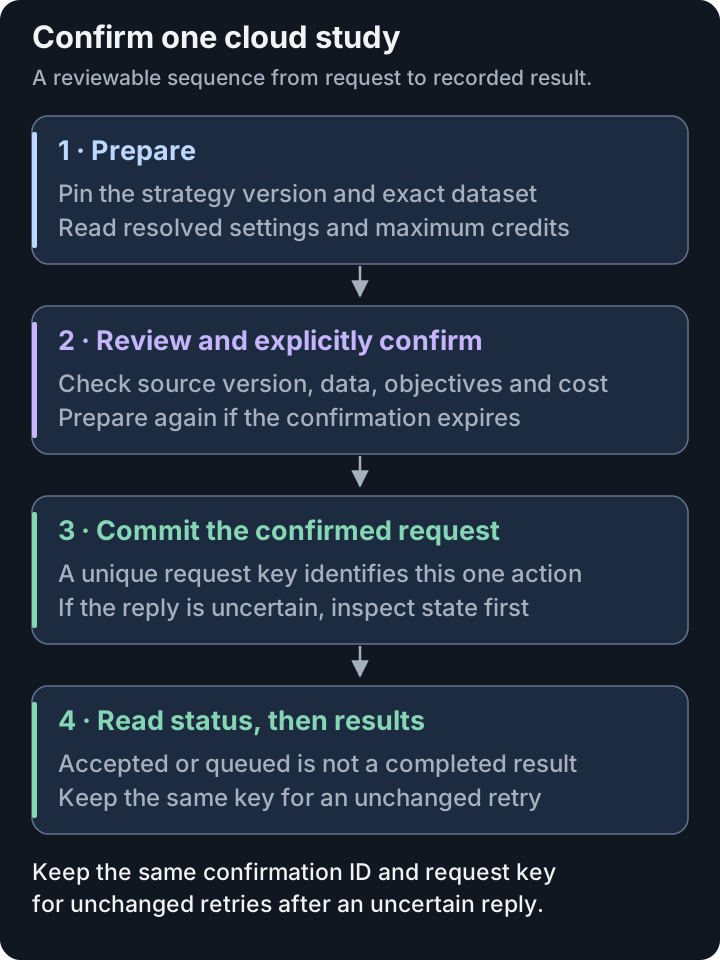
Prepare does not start a study. Recover an uncertain commit with the same confirmation ID and request key. A new prepare-and-commit sequence can create another study.
- Prepare. Optimizer validates the request and returns a confirmation that is valid for five minutes. The confirmation shows the settings that will actually be used: the data, strategy, search space, scoring, run size, cost estimate and risk.
- Commit. Review those settings. The assistant commits the request only after you explicitly confirm. If more than five minutes have passed, ask the assistant to prepare again.
Cloud studies use credits under the same rules as cloud studies you start in the app. The confirmation estimates the credits from the number of trials. Ask for your account status to see how many credits you have. Credits are not money.
If the reply to a commit is lost, do not ask for the study again. Each commit carries an idempotency key: a unique label that lets Optimizer recognize a repeat of the same request. Ask the assistant to inspect the study state first. If needed, it then retries the same request with the same key. Once a confirmation has been used, Optimizer refuses it with any other key. Starting a new prepare-and-commit sequence can create a second study, so inspect the original outcome first.
Pause, Stop and Retry
Pause, stop and retry take effect at once. The assistant does not ask you to confirm them, so name the study you mean.
- Stop keeps the study and its recorded trials. Cloud trials that have already started may finish, and they are charged. Credits reserved for trials that never start are released. After the study settles, ask for your account status to see the final charge.
- Pause keeps the study's settings and progress. A paused cloud study keeps the credits reserved for it, but it does not count toward the number of studies your plan can run at once. When you retry it and your plan has no free place, the study waits until one opens.
- Retry continues a failed, cancelled, paused or eligible queued cloud study. A queued study already enqueued for a worker starts automatically; wait for it to start instead of retrying it. Cancelled is the state that a stop leaves. The remaining work may use more credits. Running and completed studies cannot be retried.
For a browser-run study, these requests only update its saved state. You resume the study in your browser.
Choose and Reuse Data
The assistant can use three data sources:
- Sample data supplied by Optimizer. This is the quickest first run. Sample data loads the most recent 500 bars unless you ask for more. Ask for at least 1,000 bars to avoid the short-dataset warning.
- A saved dataset in your Dataset Library. Upload a file once. After that, ask for the dataset by name. You do not put the file back into the conversation. A saved dataset belongs to your account only. You can also upload a file on the Datasets page in Optimizer.
- A new CSV or JSON file. Use one of the upload routes below. Max includes saving a new dataset to your account.
Your file must meet these rules:
- Format: a UTF-8 CSV file, or a JSON file whose top level is an array of bar objects.
- Time: each bar needs
timeortimestamp. Use an integer Unix timestamp in seconds or milliseconds, or ISO 8601 text such as2025-01-01T00:00:00Z. An ISO value without a timezone is read as UTC; a date alone means midnight UTC. Every timestamp must fall from January 1, 2000 through two days in the future. - Prices: each bar needs positive finite
open,high,lowandclosevalues.highcannot be belowlow. - Volume:
volumeis optional. If you include it, each value must be finite and non-negative. - Order: bars must run from oldest to newest, and timestamps must be unique.
- Size: the default policy allows up to 8 MiB (8,388,608 bytes) and 25,000 bars per file, with up to 50 saved datasets and 200,000,000 bytes per account. The service can configure different limits; these are not the larger direct-file limits on New Study. When the assistant creates an upload, the reply reports the file size limit for that upload. The upload page shows the size and bar limits for that upload.
Tell the assistant the market as a complete TradingView symbol in the form
EXCHANGE:TICKER, for example COINBASE:BTCUSD, OANDA:EURUSD or NASDAQ:AAPL. The symbol
is saved with the dataset and carried into every study that uses it. A bare ticker such as
BTC or BTCUSD is not accepted. The assistant then gets a list of matching listings and
asks you which one is right.
Do not give a timeframe. Optimizer reads it from the spacing of the bars when the dataset is saved. If the bars fit more than one timeframe, the assistant shows the possible choices and asks you to pick one. If the spacing matches no supported timeframe, the file is refused.
During the prepare step, Optimizer pins the dataset contents: it records exactly which bars the study will use. The confirmed study cannot silently switch to different bars before it starts.
A saved dataset stays in your library until you delete it and Optimizer confirms the deletion. You may not be able to delete a dataset that a study still uses.
Choose an upload route for a new file:
| Route | Use It When |
|---|---|
| Upload page | The file is on your machine. This is the usual route. |
| Shell upload | Your assistant can read the file, hash it and send it over the network itself. |
| Tool chunks | Your assistant can read and transform the file but cannot make the shell upload request. This route is slower. |
Upload Page: The Usual Route
- Ask the assistant to create an upload for the symbol and file format.
- The assistant returns a page link that is bound to your account. Open that link. The link is valid for four hours, and the page shows the exact deadline.
- On Upload Dataset, choose or drop the file under Drop Your File.
- Wait until the page shows Your File Is Staged.
- Return to the same chat and send the page's continuation message. It starts with
Continue upload. - The assistant then finalizes the staged file into a reusable dataset.
To swap the file before step 5, select Upload a Different File. If the page shows This Upload Link Has Expired, ask the assistant for a new link.
The upload page shows where your upload stands:
| What the Page Shows | What It Means | What to Do |
|---|---|---|
| Drop Your File | The link works. The page is ready for one CSV or JSON file, up to the size it shows. | Choose or drop the file. |
| Uploading and checking your file… | The page is uploading and checking the file. It is not staged yet. | Wait for Your File Is Staged or an error. |
| A message that starts That file is and gives the size this slot allows, or Choose a .csv or .json file. | The page refused the file before sending it. A refusal from the server shows its own message beside the file area. | Choose a supported file within the size limit, or fix what the message names. |
| Your File Is Staged | The file is uploaded and checked. The page shows its bar count, dates and size. It is not a saved dataset yet. | Copy the Continue upload message and send it in the same chat. |
| This Dataset Is Ready | The assistant saved the dataset. The page may show its dataset ID. | Nothing more to do on this page. |
| This Upload Link Has Expired | The link no longer works. | Ask the assistant for a new link. |
| Couldn't Load This Upload | The page could not load the upload. | Select Try Again. It does not send the file. |
After you send the continuation message, the assistant checks the saved upload state once and waits at most 30 seconds. If the upload is still pending, the assistant should stop and let you return when ready. It should not keep checking without end. No client is promised an automatic wake-up after you leave the chat or end its turn.
The page link only identifies the upload. It is not a key. The page requires your normal Optimizer browser session and returns nothing useful to a different account.
Shell Upload: When the Assistant Controls the File
Use this route only when your assistant can actually read the file, hash it and make the network request. A hash is a short fingerprint calculated from the file's contents. MCP access alone is not a reason to use this route.
A shell-capable assistant does this:
- hashes the local file;
- creates an upload;
- requests a single-use upload URL, which is valid for 60 seconds;
- sends the whole file directly to the Optimizer API; and
- finalizes the verified file.
The assistant must keep that URL out of the conversation and logs. If the URL expires or is replaced, the assistant requests another one for the same upload. The upload itself expires one hour after the assistant creates it.
Tool Chunks: Controlled Fallback
Some assistants can read and transform a local file but cannot make the shell upload request. They may send the file in pieces (chunks) through the MCP connection itself. Each chunk is compressed, limited in size and hashed separately. Tool chunks are slower because the bytes travel through the assistant's tool calls. An upload sent this way also expires one hour after the assistant creates it.
The assistant must generate the chunks from the real file with a program. Do not type the base64 data, reconstruct it, or ask the model to invent it. Use the upload page if your assistant cannot handle the bytes safely.
What Every Route Checks
All three routes end with the same status and finalization steps. Before Optimizer creates the saved dataset, it verifies the file size, the content hash and the parsed bars. No storage location or storage credential is returned.
Select a Strategy
You can use two kinds of strategy:
- The official Lorentzian Classification strategy. It is available without a module upload.
- Your own strategy. Studio compiles supported scripts and can upload the compiled version, called an artifact, to your private module catalog. The assistant can discover user-owned compiled strategy artifacts when you grant the strategy-metadata permission.
An uploaded strategy is not automatically allowed to run in the cloud. Uploading it does not allow cloud runs by itself.
When you optimize a script saved in your Script Library, the compiled-strategy upload records which saved version produced it. That upload does not contain the source text, and the cloud worker does not need it. If you separately enabled cloud source sync, your account can also hold source and libraries; the assistant's strategy-metadata permission is not a source backup.
For your own strategy, ask the assistant to:
- list your strategies and show the source revision when one is associated;
- identify the exact compiled version, including its artifact hash when you need to verify it;
- show that version's settings and current cloud eligibility;
- prepare the study with that exact version; and
- show the same strategy version and execution policy again before commit.
Cloud support for your own strategy applies to one exact version at a time. That version must pass a cloud check first. AI Edge turns these checks on or off for each service. Where they are on, you can run the check yourself:
- On New Study, open Where This Study Runs.
- Choose The Cloud.
- Select Check This Version. If the version was checked before, the button reads Check Again.
You can also ask the assistant to start the check for one exact version and to report its status. A check does not use the prepare-and-commit steps, but the assistant should ask you before it starts one. Tell it how many bars your study will use, so the check measures that history length. A check uses no credits. Each account can start up to 20 new checks in any 24-hour period, in the app and through the assistant together. Reading a check's status does not count toward this limit.
AI Edge can also qualify a version. Until a version is qualified, the assistant reports it as
custom_runtime_not_qualified for cloud use, even when it can run in your browser.
The cloud check uses generated test data, not your uploaded prices. It checks the compiled file and parameter contract, then tests defaults and range corners for valid, repeatable output. It also measures the defaults on generated history to set the resource allowance. Passing this check does not test every setting combination or establish that the strategy is profitable.
When New Study has data loaded, the resource test uses that history length, with a minimum test length of 2,000 bars. When no length is specified, the default capacity check starts at 40,000 bars and can try 30,000 and 20,000 after a longer test fails. 40,000 bars is not a universal cloud-history ceiling. The version's recorded cloud capacity, when present, is enforced before a study starts.
If your data exceeds that recorded capacity, New Study offers Check Longer History. It checks generated history at the length needed by your study, which can exceed 40,000 bars. Read the resulting capacity and any refusal before starting. A version that exceeds the resource limits can be refused even when its source compiles and its chart runs locally.
A study is tied to one exact artifact. This tie is called a pin. If the pinned artifact is changed, deleted or revoked, Optimizer does not use another artifact in its place. After an artifact is revoked:
- Optimizer refuses new commits, retries and queued starts that use it; and
- you can still read the retained historical results and the strategy version that produced them.
Generic AI refinement is not yet supported for a user strategy. If you ask for it, the assistant should tell you that Optimizer refuses the request, and it should leave the original strategy unchanged. It must not switch your study to the official strategy behind the scenes.
Check the Confirmation Before You Commit
The confirmation names:
- the strategy and the dataset;
- the objective or objectives, and the scoring method;
- the searched ranges and the pinned (fixed) values;
- the engine defaults;
- the minimum-trade floor (Minimum Trades in the app);
- the sampler settings and the pruning settings; and
- the trial count (
n_trials) and the number of study versions (parallel_count, Parallel Runs in the app).
Cost
n_trials × parallel_count is the number of trial evaluations you asked for. The
confirmation reports it as the most credits the study can reserve. A study that runs all its
trials is charged that amount. If it stops early, the trials it attempted are charged and the
rest of the reservation is released. Credits are not money, and the estimate does not mean Optimizer will accept
the study.
Full-Fidelity and Early Pruning
A Full-Fidelity study evaluates the complete dataset for each trial. Early Pruning stops weak trials before they have used all the data. It applies only when it is explicitly enabled for the official strategy. In that case, pruned partial scores are diagnostic and are not ranked as completed results. User-owned cloud strategies currently require full fidelity.
To score one exact configuration of your own cloud-qualified strategy, ask the assistant to prepare a single evaluation with every setting fixed. It runs one trial with no parallel runs.
Ranges That Cannot Change the Result
For the official strategy, a maxbarsback range or value that reaches past the number of
bars in the dataset is capped before you confirm. The upper limit becomes the bar count,
rounded up to the next step of 50, because every higher value uses all of the data anyway.
The confirmation shows the range that will run and the range you asked for. Optimizer also
reports other supported official-strategy cases where a material part of a range cannot
change the result.
A range can include values that do not change the result even when Optimizer shows no warning. Ranges of your own strategy are not automatically analyzed this way.
Objectives and Scoring
Choose the objective the study ranks by. The default is sortino. This differs from New
Study in the app, which starts on Profit Factor when your strategy offers it.
sortinoandsharpeare per-trade ratios.profit_factor,win_rate,raw_net_return,max_drawdown,deflated_sharpe,omega,recovery_factorandcalmarare direct metrics.
A start that uses a direct metric can be refused where the runtime it needs is not yet
available. The refusal comes before a study is created or charged. In that case, choose
sortino or sharpe.
For sortino and sharpe, also choose a scoring method. Both methods are explained in
Objectives and Scores:
- Robust (
robust) is the default. It caps the ratio at 4 and applies a trade-count confidence discount. The result is a confidence-weighted score, not the textbook ratio. - Traditional (
canonical) removes the Robust cap of 4 and the trade-count weight. Numerical limits and eligibility rules still apply. Low-trade outliers can dominate; choose a trade floor deliberately. Thirty trades is the app's optional starting suggestion, not a reliability guarantee.
The scoring method does not apply to the direct metrics. For omega, the target return per
trade is 0.2% unless you set another value from 0% to 5%.
For a Signal Returns study, objective_params.round_trip_cost sets a flat cost fraction
per closed trade (0.002 means 0.2%; allowed 0 to 0.05, default 0). It is subtracted before
all objectives and trade metrics. Studies of the official strategy are scored on Signal
Returns, so at the default of 0 their scores leave out fees and slippage.
Executed Trades already include the script's costs
and refuse an extra signal cost. Omega's target remains a separate hurdle after costs.
objective_params.target_trades (whole number 1 to 1,000,000, default 100) and
objective_params.sigmoid_steepness (greater than 0 to 100, default 2) expose the existing
Robust Sortino/Sharpe confidence controls. Other scores ignore that discount. Prepare
discloses the resolved controls and cost basis; Run Again and follow-ups carry them.
Different costs or active confidence settings define separate comparison and ranking
scopes. Read Trading Costs and the Omega Target.
You can also ask for extra objectives in the same study, for example “optimize Sortino and also Profit Factor.” All objectives share one trial budget and cost the same credits as a single-objective study. Each extra objective makes the search for the others less focused. Such a study always runs at full fidelity, so early pruning is not available. The results add each objective's best trial and a Balanced Winner.
Robust and Traditional scores are not directly comparable. Ranked results leave out two kinds of score: placeholder scores that mark a trial as ineligible, and partial scores from pruned trials.
Short Datasets
If the data has fewer than 1,000 bars, prepare returns a warning without a confirmation. On data that short, most trials make fewer trades than the minimum-trade floor and are scored as ineligible. The study can then finish with no ranked result while its credits are still spent. Use a longer history if you can.
The warning alone starts no study and spends no credits. To continue anyway:
- Review the warning.
- Tell the assistant explicitly that you accept it.
- Ask the assistant to prepare again.
Monitor and Read Results
Ask the assistant to check a study's status. If the study is still queued or running, ask again a few minutes later. The assistant should not check over and over without a pause.
A study's status includes the number of completed, pruned and failed trials. The planned trial count is a budget, not progress. If no trial meets the minimum-trade floor, the study has no winner.
Before you choose the ranges for a next study, ask the assistant whether the best trials of a completed study pressed against the limit of a range. It can suggest the next range. If a limit that your own script declares stops that range, the assistant can tell you which input limit to change in Studio. Reading this report does not change your script.
Lists of studies and results come in pages of limited size. One reply may not contain your entire history. The assistant follows the continuation fields in each reply to get the next page.
A completed result keeps the exact record of what produced it: the dataset, the strategy, the artifact hash, the source revision when available, the execution policy and how the score was calculated. You can still read a failed study. The assistant receives recovery information for it, with sensitive details removed.
Ask for AI insights only when you need them. An external AI model, Google Gemini, writes insights and refinements from the study's name, settings and trial results. Generating them uses no credits, but each new generation is a new run of that model. Optimizer keeps the detailed reply for a limited time in a temporary cache tied to your account, the assistant and that request. This cache is separate from any insight records and refinement audit data saved with your account; expiry of the reply cache does not mean those saved records have been deleted. The assistant reads the reply page by page. If it is missing or expired, the assistant must ask before generating the potentially costly analysis again.
Read a Trial's Trades and Strategy Report
Ask for one completed trial by its trial number, not its position in the ranking. For a cloud study of the official strategy, the assistant can ask Optimizer to run the trial again on the study's stored data. Optimizer returns the trades only when they match the saved score, trade count and metrics. Each trade uses the bar-close, per-trade return that the score used. It is not the Strategy Report's list of order fills.
- Trades arrive in pages of up to 100. Follow the continuation until the list is complete.
- The replay creates no study or trial and uses no credits. An account can start up to five new replays in each ten-minute period. Reading a replay that is running or finished does not count.
- A trial with more than 50,000 trades is refused, not cut short. This does not change its score.
- A
readyreply is verified.computingandrefusedmean the trades are not available yet or at all. Only a ready reply with a verified total of zero means the trial closed no trades.
A study read can also include a Strategy Report summary for the winning trial. To create it, open that trial with See It in Studio while signed in, and let Studio finish running it. The summary uses order fills and the script's commission and capital settings. It never changes or replaces the ranking score. If the reply says available: false, read its reason: no report was stored, or it could not be read. That is not a zero result.
Total P&L adds the open position’s unrealized price gain or loss to Net P&L. Net P&L excludes that price movement but can already include paid entry commission on positions still open; it need not equal the sum of closed-trade rows. In the assistant's summary, max_drawdown_percent is measured against initial capital. max_drawdown_intrabar_percent is the full-range percentage that Studio's Key stats shows, measured from the realized-equity peak before that trade; reports stored before it was added do not have it. Equity Run-Ups and Drawdowns explains the difference. Return Details explains the other figures.
Evaluate One Fixed Configuration
Ask the assistant to score one complete set of settings on one dataset. Every parameter must be fixed to a single value; ranges and searchable settings are refused. The prepare reply discloses the strategy version, dataset, settings, objective, scoring controls and maximum credit reservation before execution. For one trial, the maximum reservation is one credit. Preparing spends no credits and starts no evaluation. Review the reply and confirm before the assistant commits the evaluation. A successful completion is charged the reserved amount; if the run stops early, attempted trials are charged and the unused reservation is released.
After that confirmation, one commit call starts the evaluation and returns a study ID with the next reads to make. First check the study until its status is Completed or Failed; accepted or queued work is not a result. Then read the score and metrics, followed by trial 0's trades. The trade read replays the trial and can return computing; follow its retry call until the replay is ready or refused. Trade replay supports only the official strategy, so for your own strategy the trade read is refused. The cloud evaluation continues without the chat remaining open. A pending result is not a failure, and the assistant should not start it again with a new request.
Evaluations are marked separately and omitted from the usual study list by default. They still use cloud capacity and credits under the disclosed account rules. A single evaluation does not appear on the Studies page in Optimizer either. After an uncertain outcome, the assistant reuses the same confirmation and idempotency key to recover the same evaluation. Ask it to check the study's state before trying again.
Recover From Errors
When a request fails, Optimizer returns four things: a stable error code, a safe message, whether an unchanged retry is useful, and a next action. Ask the assistant to show them to you.
| Message or Error | Meaning and Next Step |
|---|---|
retryable: false | Repeating the same request will not help. Next: Change the condition first: reconnect, grant the missing permission (your assistant may call it a scope), restore credits, free capacity, correct the data, or prepare a new configuration. |
outcome_unknown | A change, such as a start or a delete, may still be running. Next: Ask the assistant to inspect the state. If needed, it then replays the same request and idempotency key. |
idempotency_in_progress | The same request is already running. Next: The assistant waits for the time given in the reply, then retries with the same key. |
| A plan message when you start a cloud study | Your plan cannot start cloud studies. Next: Check your plan in Account settings, or run the study in your browser in Optimizer. A browser study uses no credits, and the assistant cannot start one. To switch between Pro and Max, choose Manage subscription there. |
| A plan message when you save a dataset | Your plan cannot save new datasets. Next: Use a dataset that is already saved, or check your plan in Account settings. To switch between Pro and Max, choose Manage subscription there. |
| A message that your plan verification has expired | Optimizer must confirm your Max access again. Next: Sign in again. |
symbol_incomplete | The symbol is not in the complete EXCHANGE:TICKER form. Next: Pick one of the listings the assistant shows you. |
symbol_not_listed | The symbol is not a TradingView listing. Next: Pick one of the listings the assistant shows you. |
timeframe_undetermined | The bars fit more than one timeframe, or none. Next: Pick one of the choices the assistant shows you. If there are none, correct the file. |
insufficient_credits | Your account does not have enough credits for this request. Next: Ask for your account status. Wait for credits, or approve a smaller study. Then ask the assistant to prepare again. |
parallel_limit_reached | Your account is already running as many studies at once as your plan allows. Next: Wait for a running study to finish, or pause or stop one. Do not send the same study again and again. |
study_limit_reached | Your account already keeps as many studies as your plan allows. Next: Choose studies to delete. The assistant prepares each deletion for you to confirm. Then prepare the new study. |
configuration_changed | The prepared settings or the selected data changed after the confirmation was made. Next: Ask the assistant to prepare again, and review the new confirmation before you confirm. |
search_range_outside_script_limits | A searched range goes past the lowest or highest value that the strategy's script allows. Next: Keep each range inside the script's limits. To search further, change that input's minval or maxval in Studio, then start from the new version. |
| A message that Optimizer could not verify your MCP access | The account service did not answer. This is temporary. Next: Wait about 30 seconds, then try again. |
| An expired upload | The upload link or upload has passed its deadline. Next: Ask for a new upload. It needs a new key. |
| Missing chunks | Some pieces of a chunk upload did not arrive. Next: The assistant resends the same bytes with the same index. Different bytes cannot replace an accepted chunk. |
| A revoked or ineligible strategy | That exact version cannot run in the cloud now. Next: Use a version that is currently qualified. Sending the same request again will not change eligibility. |
cloud_check_daily_limit_reached | Your account has started as many cloud checks as it can in one day. Nothing new was checked. Next: Try again later. The limit counts checks started in the last 24 hours. The assistant can still read the status of any check already made. |
| Too many requests | The assistant sent requests too fast. Next: The refusal gives a wait time in seconds. The assistant waits that long, then continues. |
If support needs to trace a failure whose cause is unknown, give them the correlation ID returned with the error. It is a reference code for that one request.
Never put any of these in a support message:
- an access token;
- an OAuth code;
- an upload URL;
- your strategy source; or
- the contents of your market data.
Example Requests to Copy
Copy a request into your assistant and change the names to match your data.
Sample data
Prepare one cloud study on at least 1,000 bars of the BTC/USD daily sample with the official strategy, Robust Sortino scoring and 10 trials. Show me the complete resolved settings and credit impact before you commit anything.
Saved data
List my saved datasets. Prepare a study using “BTC daily”; show its symbol, timeframe, date range and bar count so I can confirm you selected the right one.
Upload page
Create an upload-page handoff for my hourly CSV of COINBASE:BTCUSD. Give me the page link and stop. I will upload the file and return with the continuation message.
Shell upload
If you can read and hash
ETHUSD-H1.csvand send it without exposing the upload URL, use the shell upload route. Otherwise create the browser upload page instead.
User-owned strategy
List my strategies. For the exact version I name, show its artifact hash, settings, current cloud eligibility and source revision. If eligible, prepare one full-fidelity cloud study and show that strategy version again before commit.
Get Help
To ask for access, or if your access is still refused after you reconnect, email business@ai-edge.io.