Save, back up, and recover your work
Studio saves scripts and Settings in this browser by default. Signing in alone does not copy an unsynced script to your account. Where saved Settings sync is available, a signed-in paid account also syncs saved Settings. Optional source sync, Settings sync and studies send different information. To protect your work, keep your source, attached libraries, Settings export and original market data outside the browser too.
- To make or restore a backup, go to Keep a Backup. Do this before you change browser or device.
- If the recovery indicator shows Recovery Off or Recovery Paused, go to Session Recovery.
- If a study runs in this browser, read Studies That Run in This Browser before you clear site data.
- If you see an error, find it in When Something Goes Wrong. Keep the app tab open while you fix the error, so that your current values stay available.
- To see what stays in your browser and what is sent to AI Edge, go to What Is Stored and Sent.
Keep a Backup
Local scripts and Settings belong to the browser where you saved them. Source sync and saved Settings sync can provide additional copies, but check that the specific version has finished syncing before relying on them. Look for Synced on the script's row in My Scripts and on the chip beside Save in Settings. You can lose the local copies in these ways:
- Another device, or another browser profile on this device, has its own separate storage. Signing in to the same account there does not bring unsynced local files with it.
- Clearing site data can remove:
- local scripts and Settings
- study profiles and imported datasets saved in this browser
- recovery checkpoints and an unfinished New Study setup
- the copies of studies that ran in this browser
- In a private window, or when the browser blocks storage, the browser may not keep what you save.
- If you use Studio before you sign in, your work belongs to a guest session. Closing the tab or signing in can make the Settings you saved as a guest unavailable, so export them first.
A dataset that you uploaded to your Dataset Library is kept in your account, so clearing site data does not remove it. To read it on a Studio chart, open Data Source → Imported Data → In Your AI Edge Account, choose the dataset and select Load account dataset. Reading an owned dataset remains available on Free, including after a downgrade; a paid plan is needed for new account saves. Load a Dataset From Your Account.
Keep the script source and Settings values together. A Settings file does not contain the source, and a source file does not contain your named Settings or attached libraries. Keep the library sources and original CSV or JSON alongside them when you need to reproduce a run.
Back Up Your Script Source
If My Scripts shows Saved on This Device Only, your scripts are saved only in this browser. Export each one as described below. Dismiss only hides the notice in this browser; the same note stays in Editor Settings… under Script Storage. Dismissing it does not back anything up. If the Script Library says Cloud source sync is unavailable, new saves are not copied to your account either, so export your scripts.
- Open the Script Library. In the sidebar, select the arrow beside Editor to show your scripts, then select Browse Scripts. This row appears when the editor has a script open, or after you have saved a script. You can also select + → Script Library… in the editor.
- Under My Scripts, find your script. Local Only on its row means that the script is saved only in this browser.
- Select the download icon on the row. Its tooltip reads Export .pine. Your browser downloads the last saved version as a
.pinefile. Unsaved edits in the editor are not included, so save first if you need them. - If the script uses libraries, save each library source separately. The
.pinefile contains the current script source only.
To restore the source, select Import .pine… at the bottom of the same list and choose the file. Studio adds it to My Scripts as a new script at Version 1. It does not open the script or bring back earlier versions. Files over 2 MiB are refused. If Studio says That file could not be read., check the file and try again.
Sync Source Between Devices
Cloud source sync is an optional, per-script service for eligible paid accounts. It is separate from the compiled module uploaded for a study and from saved Settings sync.
- Save the script to My Scripts, then find its row in Browse Scripts.
- If Sync To Cloud is available, select it and read the confirmation. Enable Sync uploads that script, its attached libraries and up to 20 recent saved versions. Cancel leaves it local.
- After enabling it, check the row's status: Syncing means work is still pending; Synced means the current saved version reached your account. Future saved versions sync automatically for this script. Unsaved editor text is not a saved version.
- On another device, sign in to the same account and open My Scripts. Cloud versions appear there when the service is available. Check the version you open before applying saved Settings.
Sync Paused means the cloud copy may be behind. Keep the local copy, read the error and use Retry Sync when available. Plan, storage or version limits can pause new uploads. If the service is unavailable, continue saving locally and export a backup.
Unsync stops future uploads and removes cloud source copies while keeping local versions. If removal cannot finish, the row says removal is pending and offers Retry Removal. Confirm that it finishes before treating the cloud copy as removed. Deleting a synced script can remove both local and cloud source copies; read the Delete Local + Cloud? confirmation carefully. A completed study still keeps its compiled artifact and results.
Back Up Your Settings Values
- Open the script's Settings and scroll to the saved Settings card at the bottom.
- Open More actions (three dots) beside Saved settings.
- Select Export current settings…. Your browser downloads a Settings file with the current values. To export a saved configuration instead, select it and choose the download icon (Export as JSON).
A Settings file is readable text. Besides your values, it contains the script's list of inputs, such as their titles and default values. It also contains fingerprints that identify the source and its libraries. If the Settings came from a study trial, the file also names the study, the trial and the compiled strategy. It does not contain the source.
Restore Settings Values From a File
- Open the compatible source. This is the script version that the values were saved for.
- Open the script's Settings. In the saved Settings card, open More actions and select Import….
- Choose your file. Studio saves the file as a new Settings configuration and selects it for you.
- Select Load. If your current values have unsaved changes, Studio asks before it replaces them. Select Discard and load to continue.
- For a strategy or a floating indicator, select Ok to apply the values; until then, they are a draft in the dialog. A docked indicator applies each change immediately and has no Ok button.
Use Saved Settings on Another Device
Where saved Settings sync is available, the configurations you save while signed in sync to your AI Edge account. They do not contain your script source or libraries.
- Sign in to the same account.
- Open the compatible source and its libraries.
- Load the synced configuration.
What your plan allows:
- Saving Settings in this browser works on every plan.
- Syncing new or changed configurations needs a paid AI Edge plan. On a Free account, configurations already in your account still sync to this browser.
- Exported files work with or without sync.
Session Recovery
Session Recovery is a safety net for a reload. It is not a backup. Studio keeps a recovery checkpoint in this browser only and never uploads it.
The bar below the editor shows the recovery indicator. Select it to open the Session Recovery panel. The panel shows the state, the time of the last checkpoint and the actions you can take. Its Backup and Recovery Guide link opens this page.
A reload restores only what the last checkpoint saved. Compiled artifact tabs are not restored. If the panel says No checkpoint yet, a reload would not bring back your current edits.
| Indicator | Meaning | What you can do |
|---|---|---|
| Recovery On | Studio keeps checkpoints of your open tabs in this browser. The last checkpoint may not include your newest edits. | Check the checkpoint time. If it says Checkpoint on its way…, keep the tab open until it shows a time. If Studio set aside a record it could not restore, the panel also shows Download Copy and Discard Copy. |
| Recovery Off | Studio is not keeping your changes in this browser right now. | Select Export .pine and check that the file downloaded. Then select Retry. |
| Recovery Paused | The account changed, or Studio is holding a record it could not restore. | After an account change, export each source tab you need: select the tab, then Export .pine. Export Settings with Export current settings… in Settings' More actions menu. Then select Reload Studio. For a held record, export what you need and select Download Copy if it appears. Fix any storage problem, then select Retry. |
In this panel, Export .pine downloads the source of the active tab. If a compiled artifact tab is active, it downloads the first open source tab instead. A compiled artifact has no source to export.
If Studio cannot restore a record, it sets a copy aside on this device for up to 14 days. Select Download Copy to save it as studio-recovery-record.json before it expires. This file is a safety copy, and Studio cannot import it. Discard Copy deletes the copy from this device, so download it first if you need it.
Recovery On means only that Studio is keeping a recovery checkpoint. It is not a saved version or a saved Settings configuration. Save your Settings yourself.
Session Recovery is separate from saved versions. When you edit a script and it compiles, Studio saves a new Script Library version. A sample that fills a blank tab is also saved as Version 1 on its first successful compile. A sample opened in its own new tab, or a new blank script, is not saved until you edit it or select Save to Script Library. A compile error saves nothing; to keep a draft that does not compile, select Save to Script Library.
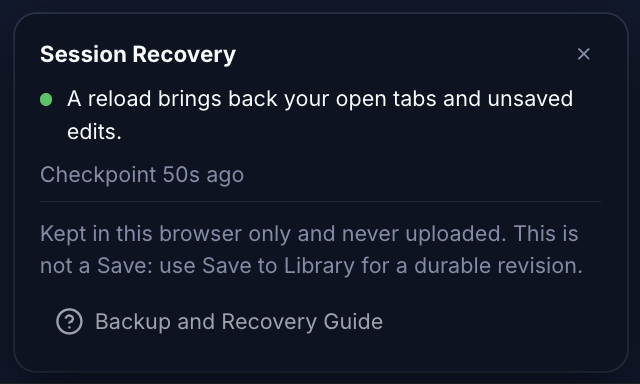
The Session Recovery panel shows its state and the time of the last checkpoint. A reload brings back only what that checkpoint holds, and only in this browser. It does not replace a saved source version or a Settings file, so keep both backups. Select the image to open it at full size.
Close a Tab With Unsaved Changes
When you close tabs with unsaved changes, Studio lists them and offers three choices:
- Keep Editing cancels the close.
- Save & Close saves the source and the Settings, then closes the tabs once every save has worked. If a save fails, the tabs stay open. Check each one before you try again.
- Discard & Close closes the tabs without saving.
Studies That Run in This Browser
A study that runs in this browser keeps a copy of its progress in this browser, so closing the tab does not lose that progress. Closing the tab while your browser is still running trials stops the run. When the page says Checking Results, your browser has finished, and the page says You can close this tab. Before you close or reload a running study, select Stop Running. Your browser uploads the results to your account as the study runs. Until a result is uploaded, it exists only in this browser.
To see the copies, open your account menu and select Studio Settings, then Browser Storage. If the panel says This browser can't keep copies of browser studies, so nothing is stored here, this browser cannot store study copies. Each copy shows its status:
- Saved to Your Account: the results were uploaded. Removing the copy loses nothing. If the row also says This study was deleted from your account, there is no Open Study action. Use Download Backup if you want to keep the results.
- Results Not Uploaded, with a count: some results exist only in this browser. Select Open Study to upload them before you clear site data or remove the copy.
- Can't Be Read: the app cannot verify the copy. Download a backup before you remove it.
- In Use: the study is open in a tab. You can remove the copy after that tab closes.
- Recovery Copy: a copy of saved results that the app could not verify. The app keeps it for support, and you can remove it.
You can take these actions:
- Download Backup, in the copy's action menu, saves the copy as an
.ndjsonfile. The panel cannot import this file back. - Clean Up Now removes the copies whose results are saved to your account and that are not in use.
- Clean Up Automatically is on by default, in this browser only. When a new browser study starts, it removes copies whose results are all saved to your account: finished studies first, then the oldest unfinished ones if more room is needed. It always keeps copies with results that are not uploaded, copies it cannot read and copies in use.
- Remove Copy, in the copy's action menu, removes one copy. If the copy holds results that are not uploaded, or the app cannot read it, the app asks you to confirm. Select Download Backup first. If the dialog says The download didn't finish, try the download again or select Cancel.
Removing a browser copy never deletes a study or a result that is saved to your account.
When Something Goes Wrong
Find the message or symptom in the first column. Where the app shows a fixed message, the row starts with its first words.
Saving Settings in This Browser
| Message or symptom | What to do |
|---|---|
| "Give these settings a name…" (a Settings name is required) | Choose Save, enter a name of 1 to 120 characters in Name, then choose Save again. |
| "Browser storage is full…" or "Settings could not be saved or read in this browser…" | Keep the tab open, because it may hold the only copy of your values. In More actions, select Export current settings… and check that the file downloaded. Then allow storage for this site, or delete saved Settings that you no longer need, and save again. Do not clear site data to make room: that also removes study copies, imported datasets, recovery checkpoints and an unfinished New Study setup. |
| "These Settings are too large…" or "These settings exceed the 512 KB record limit." | A Settings configuration larger than 512 KB cannot be saved, exported or synced. The app tells you so and keeps your values open. Do not close the tab that holds the only copy. |
| "These settings changed in another tab or were deleted…" | The app refused your save so that it would not overwrite the other change. Choose one. To load the saved values, select the configuration under Saved settings, then select Load. To keep your draft as a new Settings configuration, select Save as new… in More actions. |
| "These settings belong to a different script version or input schema…" (the script's inputs changed) | The app does not convert the values for you. Choose one. Open the script version that the Settings were saved for. Or select the configuration and choose Update to this version to copy the values into a new configuration. Or reset to the open version's defaults with Defaults → Reset settings. See When the Script Changes. |
| An input that reads a plot from another script (an external plot) must be connected again | Open and run the script that draws the plot. When Studio asks, choose the open plot for each external input, then select Reconnect. To start this yourself, select Reconnect external plots… in More actions. Studio does not reconnect plots for you. |
If the same action on your saved Settings fails twice in a row with the same error, a Help link appears beside the error. The link opens this section. It does not retry the action or change anything for you.
Syncing Saved Settings
| Message or symptom | What to do |
|---|---|
| The chip reads This browser, or "Syncing isn't available on this server yet…" | Your saved Settings stay in this browser. Sign in if you are signed out. Otherwise, sync is not available here: export the Settings you want to move. |
| "Syncing new changes needs a paid AI Edge plan…" | On a Free account, new and changed Settings stay in this browser. Configurations already in your account still sync here. Export what you want to move. |
| Offline, or "Your account could not be reached…" | Your saves are kept in this browser and sync when you are back online. Export what you cannot afford to lose until the chip reads Synced. |
| "Sign in again to sync your saved settings…" | Sign in again. Nothing in this browser has changed. |
| "This saved setting changed on another device…" or the card offers Load it | Your values are kept. Choose Load it to take the newer values, or Keep my edits. A synced configuration's Version history can restore an earlier save. |
| "Your account shows no saved settings, so Studio kept the ones on this device…" | Studio did not delete anything here. If you deleted the configurations on purpose on another device, delete them here too. |
| "Your account changed. Close and reopen Settings before continuing." | After you switch accounts, close Settings and open it again. The app does not apply data from the previous account to this one. |
Scripts and Studies
| Message or symptom | What to do |
|---|---|
| "The edited script compiled, but its new Version could not be saved…" | Your edit is still in the editor. Select the save icon to try again. If the save fails again, copy the source into a file, or select Export .pine in the Session Recovery panel if it offers it. Then free browser storage and save again. |
| Trial Settings cannot be applied | Check that three things are available: the exact script source that the study ran, its attached libraries and the study's parameter information. Keep the original tab open. A script with a similar name does not work. |
| Compile or Optimize is unavailable | Read the diagnostic or signal explanation that Studio shows. Fix the unsupported features and input types before you try again. See Launch a Study. |
| A study has no eligible trials | Read the explanation on the Results page and the study's configuration. Check the data, the search choices and the eligibility requirements before you start another study. See Understand the Score. |
| Browser Storage Full | A new browser study cannot start until there is room. Select Free Up Space on the study's page, then remove copies whose results are saved to your account. If a running study paused because storage filled, select Export Local Results before you free space. See Studies That Run in This Browser. |
| "This browser isn't letting the Optimizer use site storage. Allow site storage for this page, then try again." | Allow site storage for this site in your browser's settings. Then select Try Again in Browser Storage. |
| "This browser cannot save study progress, so the study did not start." | Allow site storage for this site, or use another browser. Then start the study again. |
| "This browser no longer has the study's complete saved history." | Select Export Local Results if it appears, to keep what remains. The export cannot restore what is missing. Contact AI Edge support before you clear the copy. |
| Study Can't Continue or Study Can't Start | The study used the retired browser runner. Its results are kept, but it cannot run. Select Run Again to start a new study with the same settings. If Results says This Study Cannot Be Run Again, start a new study and upload the data again. |
| "The server could not verify part of this study." or "This run was replaced on the server." | Local results are kept, but no more trials will run. Export them before you clear saved progress. If Start A New Run is available, use it to start over. |
If the recovery indicator shows Recovery Off or Recovery Paused, see Session Recovery.
If chart data does not load in Studio, see If a Data Source Does Not Load. If a study run stopped, or a New Study setup came back without its data file, see Recover an Interrupted Run.
What Is Stored and Sent
Browser execution describes where trials run, not where all study information stays. AI Edge receives the compiled strategy, dataset and study configuration for browser studies as well as cloud studies. Source sync is a separate choice.
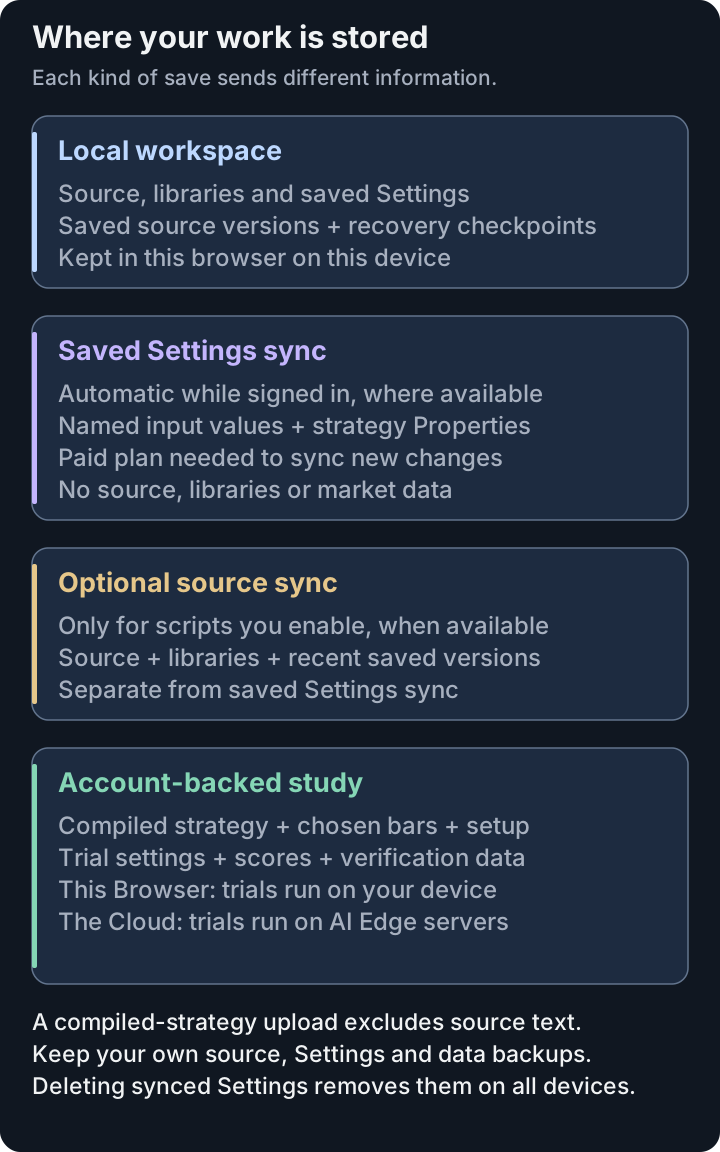
Local editing, optional source sync and study execution have different storage boundaries. This is an explanatory diagram, not a screenshot. The tables below give the details.
Source, Settings and Recovery
| Action | What it stores or sends |
|---|---|
| Edit or save source in Studio | Runs locally and saves source versions in this browser. A script explicitly enabled for source sync also uploads saved versions and attached libraries. |
| Enable Sync To Cloud | Uploads the selected script, its libraries and up to 20 recent versions to your account, then syncs future saved versions. Read the source-sync controls. |
| Save in Settings | Saves the named Inputs and Properties in this browser. Where saved Settings sync is available and a paid account is signed in, it also sends the configuration name, input values, Properties, input declarations and compatibility fingerprints to your account. Trial-derived configurations also identify the study, trial and compiled strategy. Source and library text are not included. Each account or guest session has its own store. |
| Session Recovery | Keeps an on-device checkpoint of open tabs and unsaved edits. The checkpoint is not uploaded and is separate from saved source versions. |
| Resolve a published library | Requests that library's public source by publisher, name and version. The request does not include your script. Manually attaching a library is local unless you sync the containing script or send it through another action. |
Studies, Datasets and Connected Services
| Action | What it stores or sends |
|---|---|
| Select Optimize for a custom script | Uploads the compiled strategy and its name. For a saved script, it also records the script ID, version and source fingerprint. This upload does not include the source text or a saved Settings file. |
| Start a study | Sends the chosen bars, study configuration and parameter information to AI Edge. This applies to This Browser too. |
| Run a browser trial | Sends the tried settings, score and supporting figures, or the error type if it fails. The compiled strategy runs in the browser. Progress waiting to upload is also kept on this device. |
| Verify a browser trial | Sends its trade signals, including time, direction and price. AI Edge rechecks the score against the study's bars, then deletes those signals. Verification of the score does not certify the strategy or its profitability. |
| See It in Studio for a trial | While signed in, sends a Strategy Report summary after the local run: metrics, capital and cost assumptions, trial values, bar count and date range. It does not send the report's trade list, price bars or source. This summary stays separate from the ranking score. |
| Save a study profile | Saves the setup locally. Paid Sync to Account creates a separate profile usable across devices. Edits to that account profile are saved to the account; edits to the original remain local. |
| Leave an unfinished New Study setup | Keeps a local draft for the current account. Starting the study, selecting Start Fresh or signing out clears it. The draft and its data are stored separately, so the form can return without its file. An expired session leaves the draft available after signing back into the same account. |
| Upload to Dataset Library | Sends and saves the market-data file to your account. Uploading requires a paid plan. Your original file remains your own backup. |
| Load account dataset in Studio | Reads only the selected owned dataset for this visit. Its bars are not saved as a local import or in Session Recovery. After a reload, select it again. Signing out or changing accounts clears the previous account data from the chart; the account copy stays saved. |
| Stage for TradingView | Sends the selected trial's settings to AI Edge, which keeps them for up to 10 minutes so the compatible indicator can import them. A newer stage replaces the earlier one. |
| Use Real-Time Data Feeds | Connects this browser directly to Binance, Binance.US or Coinbase. AI Edge does not relay the feed. To choose Binance or Binance.US, Studio asks AI Edge which country your connection comes from. Starting a study on collected bars still sends those bars to AI Edge. |
| AI assistant: insights or refinement | Sends study details to Google's Gemini API: strategy name and type, market, bar count, objective, progress, ranges, importance and top configurations. AI Edge saves the analysis with your account. Refinement also stores its prompt, trial analysis, raw reply and model version. Read the assistant workflow. |
Request AI insights or refinement through a hosted MCP assistant or Copilot's built-in AI Edge connection, when those actions are available for your account. These are assistant actions, not Results-page buttons.
The Try Next ranges and Run This Follow-Up controls use the study's own trial statistics and parameter-importance analysis (How Impact Is Calculated); they do not request Gemini analysis.
Detailed AI replies are kept for a limited time in a temporary cache tied to your account, the assistant and that request. This cache is separate from any insight records and refinement audit data saved with your account; expiry of the reply cache does not mean those saved records have been deleted.
Historical results come from the study, trial and compiled-strategy records AI Edge keeps. They do not restore a local source library, attached libraries or a named Settings configuration by themselves.
If you use Copilot or another connected AI assistant, the code, messages and files that you provide to it have that service's data flow. For Copilot, an optional Beta program, the Copilot Beta Agreement explains what is kept and how AI Edge uses it, including to improve its products. Local compilation alone is not a promise that an assistant conversation stays on your device. This page covers the listed user actions; the privacy policy describes the broader service policy and operational telemetry.