Save and Reuse Settings
- Settings holds a script's input values and, for a strategy, its Properties, such as initial capital and commission. A named, saved set is a configuration.
- Saved configurations are kept in this browser. Where saved Settings sync is available, they also sync to your account while you are signed in. Export them to a file to keep your own backup.
- Use These Settings on a study's Results page sends a trial's values to Studio.
- Search ranges are not part of Settings. Save those in a study profile.
This page shows you how to save a script's Settings under a name, use them again, back them up, and bring in the values from a study result. If you want to save search ranges and run preferences instead, use a study profile.
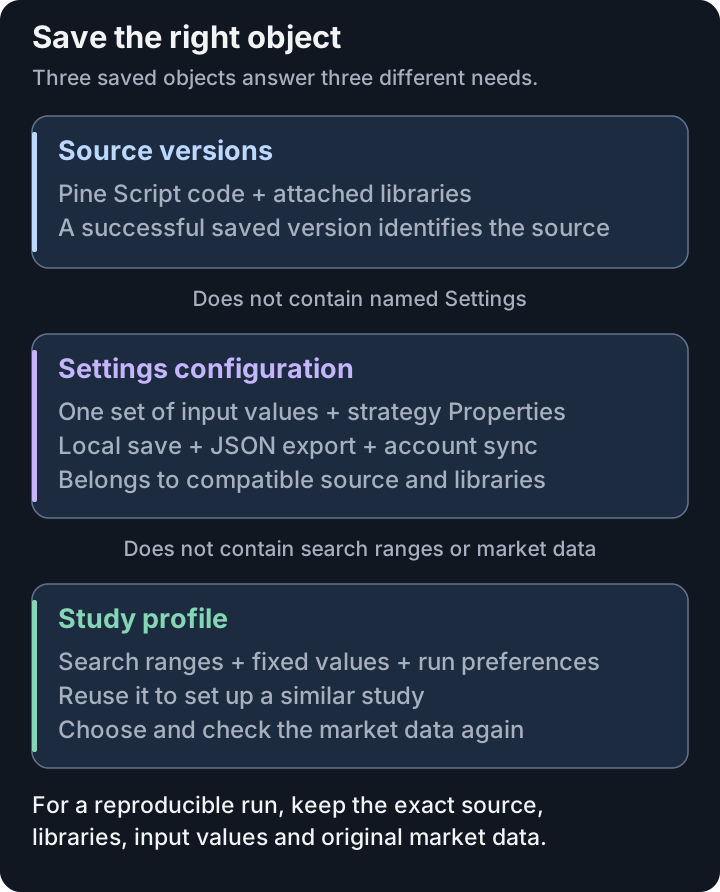
Save the object that matches the task. A configuration is not a source backup, and a study profile is not a dataset.
Settings holds a script's input values. For a strategy, it also holds Properties: the assumptions that the trading simulation uses, such as initial capital and commission. A named, saved set of these values is called a configuration.
Settings does not hold:
- application preferences
- the choices on the Style and Visibility tabs, which change how the script is drawn. Those stay with the chart.
- the ranges that a study searches. To reuse a study setup, such as its search ranges, objectives and trial count, use Profiles on the New Study page.
To open Settings, select the Settings button below the source editor. The gear icon on the script's row in the chart legend opens the same dialog. A dot on the Settings button means the open values have unsaved changes.
More Editor Actions → Editor Settings… opens a different dialog. It controls the editor's tab labels and tab width.
Save and Reopen Settings
- Open a script in Studio and wait for it to compile.
- Select Settings below the editor.
- Change the values on Inputs. If the dialog has a Properties tab, change those values too.
- Scroll to the bottom of the dialog. The saved Settings card there names the active configuration and shows its status, such as Not saved yet, Unsaved changes or Saved with the time of the save.
- Choose Save. The first time, enter a name that tells you what the values are for, then choose Save again.
- Choose Ok to apply the values to the chart.
Once a configuration is active, Save stores your changes under the same name. The card then lists your configurations under Saved settings, with a count beside the title. Select a row to see what loading it would change, such as Loading changes 2 values. The row you are using is marked In use.
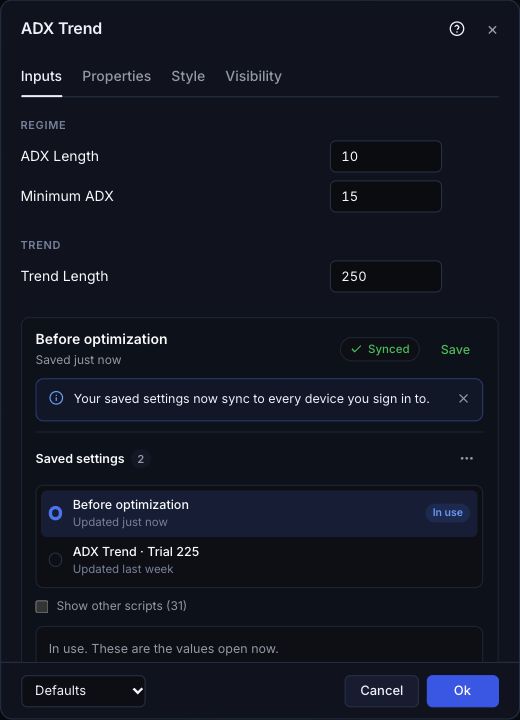
A configuration saved on AI Edge's test service in November 2026. Synced refers to the saved Settings; it does not mean that the script source or market data has synced.
| To do this | Do this |
|---|---|
| Use a saved configuration again | Select it under Saved settings, then choose Load. If your open values have unsaved changes, Studio asks first: choose Discard and load or Cancel. Then choose Ok to apply the values to the chart. |
| Keep the current values as another configuration | Open More actions (three dots) beside Saved settings and choose Save as new…. The original stays as it is. |
| Rename the selected configuration | Select the pencil icon (Rename), type the new name under New name, then choose Rename. |
| Delete the selected configuration | Select the trash icon (Delete), then confirm with Delete. Your open values stay. |
| Reset the open values to the script's defaults | In the dialog footer, open Defaults and choose Reset settings. This also resets Style and Visibility. Then choose Ok. |
Saved settings lists the configurations saved for the open script, including ones saved for an earlier version with the same inputs. Configurations whose source and inputs both differ from the open script are hidden. When there are any, a Show other scripts checkbox with their count shows them, each marked Other script. See When the Script Changes.
When Your Changes Take Effect
In the floating Settings dialog, Studio holds your edits to Inputs and Properties as a draft. For an indicator or strategy, it applies the whole draft when you choose Ok; Cancel discards it. Docked indicator Settings apply each change immediately, as described below.
Saving does not apply a draft. Save stores the values under a name. Ok applies them to the chart. These are two separate actions.
For an indicator, you can dock Settings to the chart. Select the icon button in the dialog header. Its tooltip is Dock to chart. The docked panel has no draft and no Ok button. Each input change applies as you make it. Load, Save and Save as new… also take effect at once.
Some scripts ask you to confirm certain inputs before they run. When you open one, a Confirm inputs dialog appears and the chart stays empty. Review the values, then choose Apply to run the script. Cancel closes the script's tab. If the tab has unsaved changes, Studio asks what to do with them first.
A time input shows its date and time in the chart's time zone. To change the time zone, right-click the time scale and choose Time zone; see Restore a Scale or Legend Arrangement. If an input has a ⊕ Chart button, select it and then click the chart to set the value. Choose Ok to apply it. A time that does not exist because the clocks moved forward is not accepted.
The save icon () in the editor saves source code to Script Library. Source code and Settings are saved separately. When you save or apply Settings, Studio does not change your code and does not give the source a new version. Studio also tracks unsaved source and unsaved Settings separately. If you close a tab that has changes, read the Save & Close message before you confirm.
Strategy Properties
The example in Your First Study is a strategy, so it has Inputs and Properties: the assumptions used by the trading simulation. Open Settings → Properties on ADX Regime Trend to review them. A strategy with no declared inputs may show Properties as its first tab.
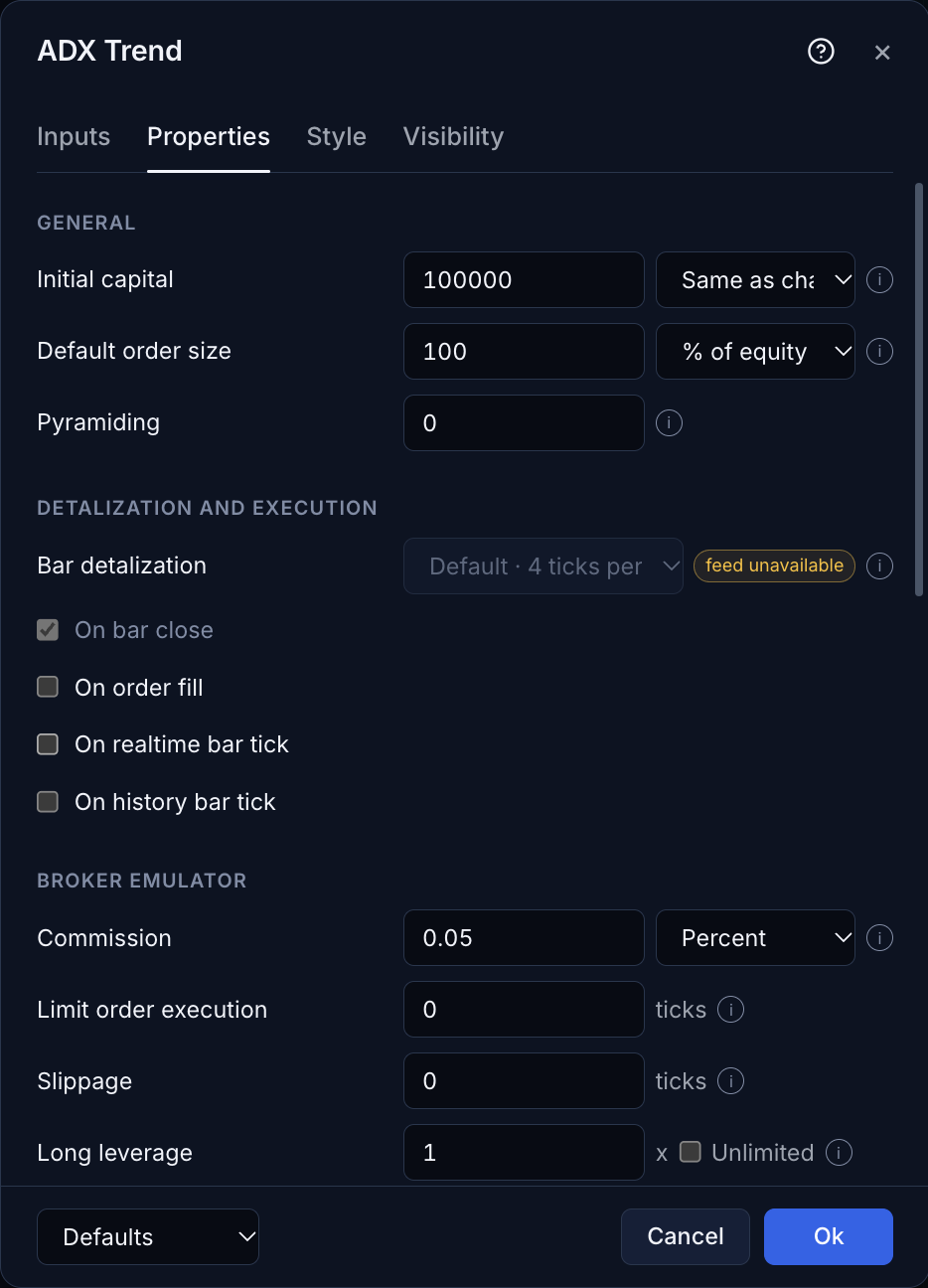
These displayed defaults come from the sample's strategy() declaration. They are examples for the walkthrough, not recommended trading settings. Select the image to open it at full size.
What the main controls do:
- Initial capital and Default order size affect exposure.
- Commission and Slippage affect simulated costs. They are in the Broker emulator section. Scroll inside the dialog to reach it.
- Currency sets the strategy's account currency. Same as chart uses the active symbol's currency.
Some controls are turned off and marked feed unavailable. Such a control needs data that this chart does not have, either in its dataset or from a separate price feed that Studio does not provide. Do not rely on it to change the simulation.
Script Execution explains when the strategy calculates. Broker Emulator and Engine Fidelity explains costs, fill timing, leverage, and data requirements. After applying a change, use the strategy report to inspect its effect on results and individual trades.
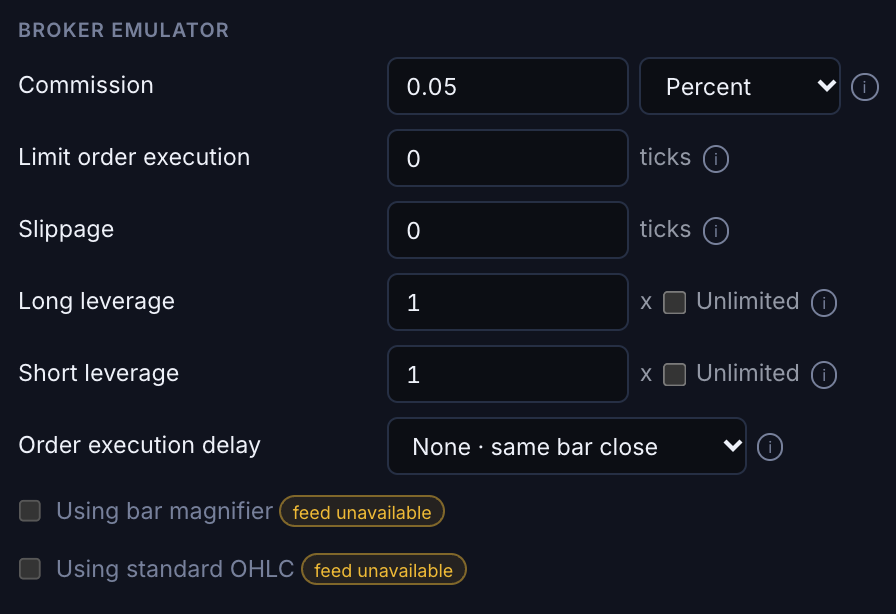
The Broker emulator section of Properties. Review these simulation costs together with Inputs before you compare results. Choose Ok to apply the draft. Saving a configuration does not apply it. Select the image to open it at full size.
Sync Saved Settings Between Devices
Where saved Settings sync is available, Studio keeps your saved configurations in step with your AI Edge account while you are signed in. A configuration you save on one device then appears on every other device where you sign in to the same account. There is no separate upload step. On an account that can sync, the card says once: Your saved settings now sync to every device you sign in to.
A synced configuration contains:
- the configuration's name
- the input values and the strategy Properties
- the script's input declarations: each input's title, type, default and options
- compatibility information, which records the script version, libraries and input declarations that the values belong to
- for a configuration that came from a study trial, a record of that trial: the study ID, the trial number and the identifiers of the compiled script version that the study ran
It does not contain your script source or attached libraries. Optional cloud source sync is a different feature: it syncs the source and libraries of scripts you explicitly enabled, not these named Settings configurations.
A chip beside Save shows where your configurations are kept. Hold the pointer over it for details.
| Chip | What it means |
|---|---|
| This browser | Saved Settings stay in this browser. This is what you see when you are signed out, or where sync is not available. Export to move them. |
| Syncing | Studio is exchanging changes with your account. |
| Synced | Your saved configurations match your account. |
| Offline | Your saves are kept in this browser and sync when you are back online. |
| Sync paused | Sync stopped for a reason shown below the list, such as your plan. |
| Not synced | Syncing failed. Your saved Settings are still in this browser. |
What your plan allows:
- Saving Settings in this browser works on every plan, signed in or not.
- Syncing new or changed configurations to your account needs a paid AI Edge plan. On a Free account, Studio says Syncing new changes needs a paid AI Edge plan. Saved settings already in your account still sync here.
To use a configuration on another device or browser profile:
- Sign in to the same account there.
- Open the compatible script and its attached libraries. Sync does not restore the source or the libraries for you.
- Open Settings. Select the configuration under Saved settings and choose Load, then Ok.
If the configuration was saved for a different version of the script, Load is unavailable. When the Script Changes gives the steps. An input that reads a plot from another script must also be reconnected.
When a Configuration Changes Elsewhere
If the configuration you are editing was changed on another device, the card names the device and offers Load it, which loads the newer values, or Keep my edits. Deleting a synced configuration asks whether to delete it from all your devices.
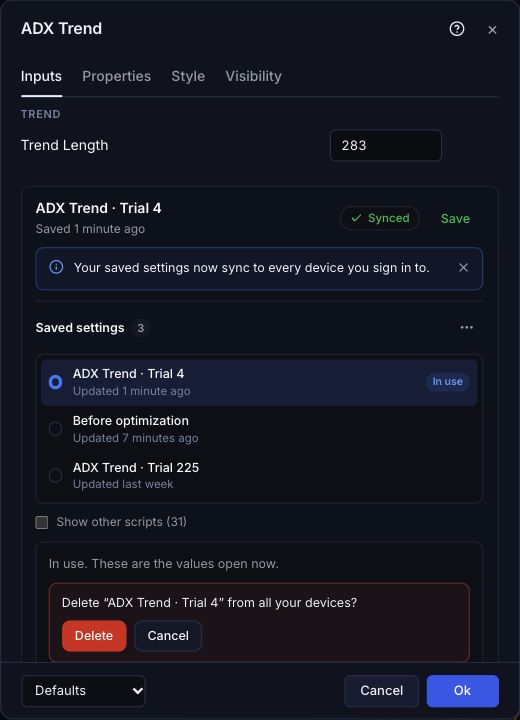
Check the configuration's name and the scope before confirming. Cancel keeps it. This screenshot was captured at the warning; no configuration was deleted.
Each synced configuration keeps earlier versions. Select it, then select the clock icon (Version history). Choose Restore beside the version you want. If the list says No earlier versions yet., there is nothing to restore.
If a sync message appears below the list, read it before you continue. Your values stay in this browser while sync is paused or offline. If syncing keeps failing, keep an export and contact AI Edge support.
Apply a Results Trial
A trial is one set of values that a study tested. You can send the values of a trial from a finished study to Studio.
- On the study's Results page, choose Use These Settings. The panel opens for the winning trial. To use another trial, choose Use Settings on that trial's row under Configurations.
- Choose where the values go. A choice that is not available shows the reason.
| Choice | What it does |
|---|---|
| See It in Studio | Opens the values on the study's own data, so that you can see the trades on the chart. Your script is not changed. On an Executed Trades study, the Strategy Report's trade count and profit factor use the same results as the score. On Signal Returns, they can differ. |
| Update Script Defaults | For a script of your own when Studio can retrieve the exact version's source. Choose Review Script Changes to see the two actions below. |
This table covers the Studio choices only. The panel also has two destinations outside Studio. Your TradingView Chart has the Stage for TradingView button. Clipboard has the Copy Settings for TradingView and Copy as JSON buttons.
To use Review Script Changes, you must be signed in. Studio also needs to know the study and the trial, and it needs the complete parameter list of the script version that the study ran. If one of these is missing, the panel says so and you cannot apply the trial.
Review Script Changes offers two actions:
- Apply to Studio Chart Settings updates the Inputs and Properties on the Studio chart. The script's source stays unchanged. Studio saves the result as a new saved configuration.
- Apply to Studio Script Defaults writes the trial's values into the input defaults in the script editor. This changes source code. Properties and other settings outside these inputs are not copied.
Before you choose Apply to Studio Script Defaults, know these three effects:
- It clears the tab's open Settings. Studio removes the Inputs and Properties values that are applied to that tab, so that the chart uses the edited script. If you want to keep those values, save them as a configuration first.
- It may open a new tab instead. If Studio cannot safely match one open tab to the original script, it opens the edited source as a new script tab. Your existing scripts stay unchanged.
- Check that the change is saved. If Studio changed your open script, its next successful compile saves a new Script Library version. If Studio opened the change in a new tab, nothing is saved until you save that tab. Hold the pointer over the save icon (Save to Script Library). If it does not say Saved as Version followed by a number, select it, or press ⌘S on Mac or Ctrl+S elsewhere.
A limit change from Results works differently. When you select Change the Limit… and then Change Script in Studio, Studio changes only the input's minval or maxval and keeps the values that are open on the tab. See Run the Next Study.
With Apply to Studio Chart Settings, the configuration combines three things:
- the values the study searched, taken from the selected trial
- the values the study kept fixed
- the Settings saved when the study was created, for all other inputs and Properties
An older study may not have stored a complete copy of its Settings. For such a study, Studio fills the gaps like this:
- Other inputs and Properties: Studio uses the defaults of the original script.
- Values the study searched or kept fixed: Studio uses the value the study stored. If the study did not store a value, Studio uses the default from the compiled version of the script that the study ran. That version cannot change.
The panel under Review Script Changes tells you when this applies. If a value is missing, ambiguous or incompatible, Studio does not guess. It refuses to apply the configuration.
Where the configuration goes depends on the Studio tab:
- The tab is compatible and has no unsaved changes: it receives the configuration.
- The tab has unsaved Settings or changed source: Studio opens a configured copy in a separate tab and keeps your original draft.
The new configuration records the study and trial it came from. The earlier study remains unchanged, and the applied values do not change the search ranges of your next study.
When the Script Changes
A configuration belongs to one exact version of your script. Studio checks three things: the script text, any attached libraries, and the full input declarations (each input's title, type, default, options, tooltip and layout). These declarations are called the input schema. Any edit to the script or to a library makes a new version, even an edit that does not touch an input.
Save a configuration before you edit the script if you want to keep a named copy of this version's values.
A version change shows up in two ways:
- You applied Settings with Ok, then edited the script. When the edited script compiles, Studio keeps the values of inputs that are unchanged and still valid. New or changed inputs use the edited script's defaults. Studio then runs the edited script. Your saved configuration does not change; it still belongs to the earlier version. If the compile fails, the chart keeps showing the last successful run. The card in Settings can then show Different script version beside the configuration's name.
- You want a configuration that was saved for an earlier version. When you select it, Studio says Saved for another version of this script. and Load is unavailable for it. If neither the source nor the inputs match the open version, the configuration is hidden unless you select Show other scripts.
You then have three choices. Studio keeps the old configuration in every case.
| You want to | Do this |
|---|---|
| Use the configuration as it is | Open the original version of the script, or undo your edit. |
| Carry the values over to the new version | Map the configuration. The steps are below. |
| Start again from the new version's defaults | In the dialog footer, open Defaults and choose Reset settings, then Ok. This replaces your open values. |
To map a configuration to the new version
- In Settings, scroll to the saved Settings card at the bottom.
- If the configuration is not under Saved settings, select Show other scripts. This checkbox appears only when hidden configurations exist.
- Select the configuration, then choose Update to this version.
- For each input, choose a saved value or a Script default. Studio offers only saved inputs of the same type. To bring the Properties too, select Keep its strategy Properties.
- Choose Save as new. Studio saves a new configuration and keeps the original.
- Select the new configuration, choose Load, then choose Ok.
Studio never matches inputs by their position, and it never rewrites your source to make a configuration fit.
If an earlier version of Studio stored defaults for this script in this browser, More actions also offers Import older defaults…. These values were saved under the script's title and may belong to another script, so check every value before you choose Save as new.
An input can read a plot from another open script. When you reopen a configuration with such an input, including after a page reload, you must connect the input again. Studio asks you to choose the open plot for each external input; choose them yourself, then choose Reconnect. To start this yourself, open More actions and choose Reconnect external plots…. Studio cannot do this for you, because a tab number can be used again and does not reliably identify the original plot.
Keep an Export
A saved configuration is stored in this browser, and on your account only where saved Settings sync is available and active. Clearing browser data, changing browsers or ending a guest session can make a local-only configuration unavailable. To protect it, export it to a file.
To export
- In the saved Settings card, open More actions and choose Export current settings…. To export a saved configuration instead, select it and choose the download icon (Export as JSON). Studio downloads a file whose name ends in
.settings.json. - Keep the file outside this browser.
- Keep the compatible script and attached libraries too. An export file does not contain your source code. It contains the configuration's name, the input values and Properties, the input declarations and the compatibility information. If the configuration came from a study trial, the file also records the study ID, the trial number and the identifiers of the compiled script version that the study ran.
To import
- In the saved Settings card, open More actions and choose Import….
- Select your export file.
Studio checks the file and creates a new saved configuration. It does not overwrite an existing one. If the file was saved for a different version of the script, map it as described in When the Script Changes.
If the file is not a Settings export, Studio says Choose an AI Edge Settings JSON export. It creates nothing and changes no saved configuration.
The export file keeps whole numbers exactly. A study accepts a narrower range of values than Studio. If a value cannot be used in a study, Studio explains why before anything is uploaded. A configuration larger than 512 KB is refused before any file is downloaded. Your open values remain available.
Free and paid accounts can both save Settings in this browser. Syncing new changes to your account needs a paid plan, as described in Sync Saved Settings Between Devices. Keep your own export files too. Storage and Recovery explains what is stored where and how to recover it.