Script Execution: Pine Script Calculation Modes
Script execution modes in AI Edge Studio set when your Pine Script® strategy calculates, which means when it runs its code and evaluates its rules. Changing a mode can change when the strategy creates orders and how it reacts to fills inside a bar.
Find This View
- In the row of controls at the top of the report, select Script execution. It is the last control, after Default detalization.
- In the popover, select or clear a mode. The report recalculates at once.
The popover lists the four modes. A selected checkbox means that the mode is on for the current run. You can turn three of the modes on or off. See Change the Modes.
The number on the Script execution button counts the modes that are on, including On bar close. It does not count calculations or trades. Hold the pointer over the button to read the count in words, for example 1 execution mode enabled.
The row of controls is hidden while the Performance chart is expanded or the report panel is collapsed. Change the Report Panel Size explains the panel buttons.
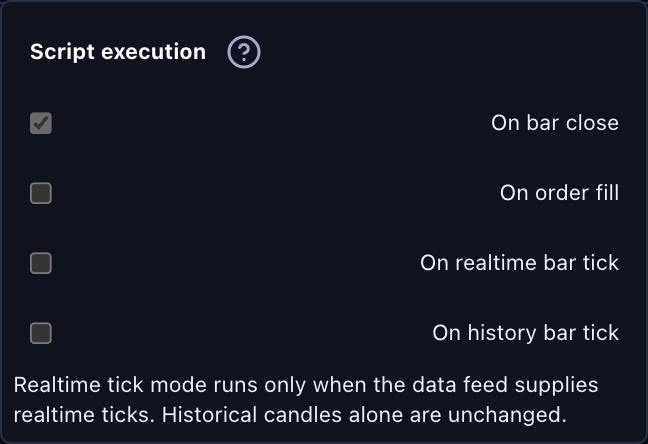
The popover lists the four modes. In this run, On bar close is on and the other three modes are off. The question mark beside the popover heading opens this guide in a new tab. Select the image to open it at full size.
The screenshots on this page use the built-in Trend Participation Filter strategy with Studio’s bundled SPY dataset. Settings shows this strategy under its short title, Trend Hold. The displayed settings and results are examples.
Creating an order and filling an order are separate events. The modes on this page set how often the strategy calculates. How often it calculates does not, by itself, decide the price at which an order fills. The Broker emulator settings also affect fills. See Check Fill Timing as Well.
The Four Execution Modes
| Mode | What It Does |
|---|---|
| On bar close | The strategy calculates one time at the end of each historical bar. This mode is always on. It stays on when you turn on other modes. |
| On order fill | When the broker emulator fills an order, the strategy calculates again. The script can then react to its updated position. It does not wait for the next bar-close calculation. On a historical bar, this calculation sees the whole bar's high, low, close and volume, as TradingView does. These values can include prices from later in the bar than the fill. Orders placed in this calculation still fill only along the rest of the bar's path. |
| On realtime bar tick | The strategy calculates on each realtime tick that the data source supplies. Historical candles alone do not supply realtime ticks, so on a dataset of past candles the results stay the same. Studio does not turn an imported file of historical candles into realtime tick history. Real-Time Data Feeds, an Experimental feature of the Max plan that you turn on in Settings, can supply realtime ticks for a live chart. |
| On history bar tick | The strategy calculates at the four steps of each historical bar's simulated path: open, high, low and close, in the order described in Bar Detalization. The close is one of these four calculations, not a fifth baseline calculation. At each step, the script cannot see later prices, except in a calculation triggered by a fill (see On order fill). Before each new step, Studio resets the script's own values to the start of the bar, except varip variables. Earlier orders and fills stay. Fill-triggered calculations can add more calls. |
Change the Modes
On bar close is always on. Each of the other three modes starts with the value in the script’s strategy() declaration. When you change a mode in Studio, you change your runs. You do not edit the script.
You can change the modes in two places. Both places control the same settings.
In the popover. Select or clear On order fill, On realtime bar tick or On history bar tick. The report recalculates as soon as you change a checkbox. There is no confirmation step, so check the modes before you compare results.
In Properties. Use this route to change the modes together with other simulation settings.
- Open the Strategy report menu, the ⌄ beside the strategy name, and choose Settings….
- Select Properties and find the Detalization and execution section. The four mode checkboxes are below Bar detalization.
- Select or clear On order fill, On realtime bar tick or On history bar tick.
- Select Ok. Studio applies your changes and recalculates the strategy.
After a change, inspect the trade list and the performance chart. To compare the results before and after the change, keep the same market data and the same costs.
The modes are among the strategy’s Properties. To keep a set of Properties for later, see Save and Reopen Settings.
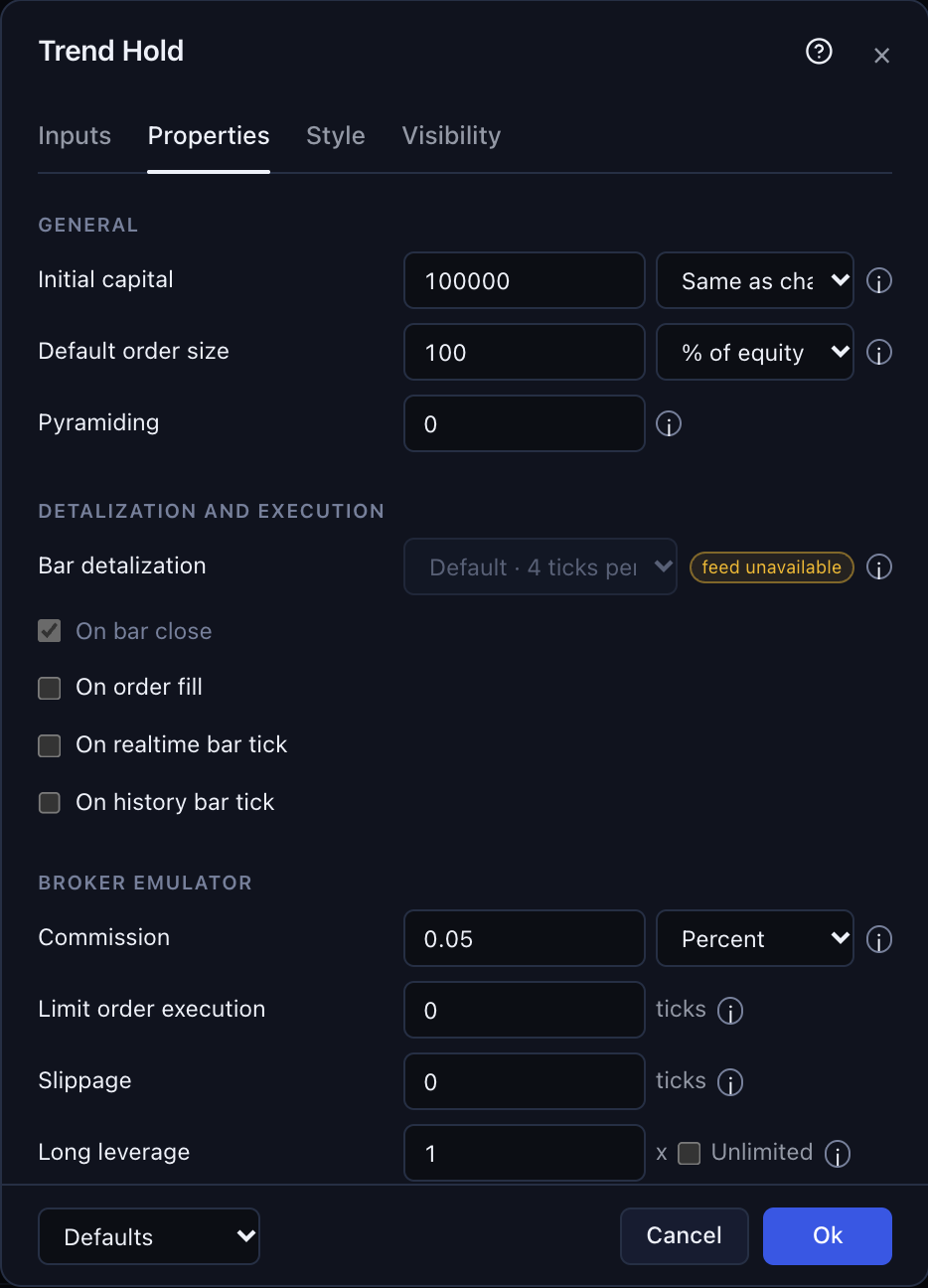
Properties shows the same modes with the other simulation settings. Ok applies your changes and recalculates the strategy. Select the image to open it at full size.
Check Fill Timing as Well
The Broker emulator section of Properties holds the settings that control how orders fill. Limit order execution, Slippage and Order execution delay control the timing and the price of a fill. The same section has Commission, which is charged on entry and exit fills. It also has Long leverage and Short leverage, which set the margin checks. These settings work alongside the calculation modes. Broker Emulator and Engine Fidelity explains them.
With only On bar close enabled, suppose the strategy creates a market order at a close of 100 and Order execution delay is One tick · next eligible bar. If the next eligible bar opens at 103, that open is the fill price before slippage. Turning on On order fill then lets the script react to the filled position. It does not move the original fill back to 100.
When On history bar tick or On order fill creates an order inside a bar, the order can become eligible at a later simulated price step in the same bar. So One tick · next eligible bar does not make every order wait for a new candle. Check the actual entry and exit rows when comparing calculation modes.
An Illustrated Example
The picture shows three moments when a strategy can calculate: at the bar close, after a fill, and at price steps inside a bar.
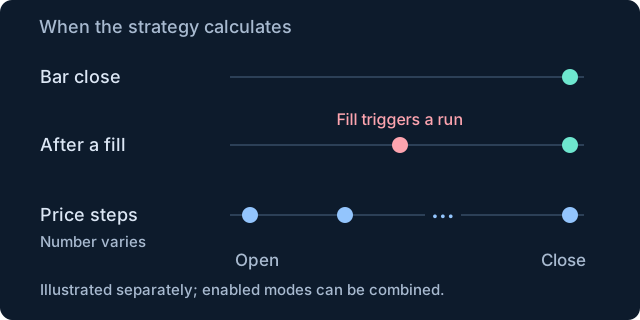
Original illustration using invented values to explain the concept. The strategy always calculates at the bar close. The other modes can add calculations after a fill or at supplied price steps. These are extra calculations, and their number in a bar is not fixed at four. The picture shows each case separately, but you can combine the modes. Select the image to open it at full size.
Continue Exploring
- Bar Detalization: which prices the simulation can visit inside a historical candle
- Broker Emulator and Engine Fidelity: how orders become fills, including costs and timing
- List of Trades: the entry, exit, costs and return of each closed-trade record
- Save and Reuse Settings: where to find the strategy’s Properties
- All Strategy Report Guides