Broker Emulator and Engine Fidelity
The broker emulator in AI Edge Studio turns Pine Script® strategy orders into simulated backtest fills, applies costs, and tracks positions and equity. The Engine fidelity notice is a message at the bottom of the strategy report. It names features that need extra market data, such as lower-timeframe data. Its text is the same for every run. If you came from the notice, go to What the Fidelity Notice Means.
Find This View
- In the strategy report, open the Strategy report menu, the ⌄ beside the strategy name, and choose Settings….
- Choose Properties.
- Scroll to Broker emulator.
The settings in this section are assumptions about costs and fills, so they change the report’s results. That is why Learn more in the notice opens this guide.
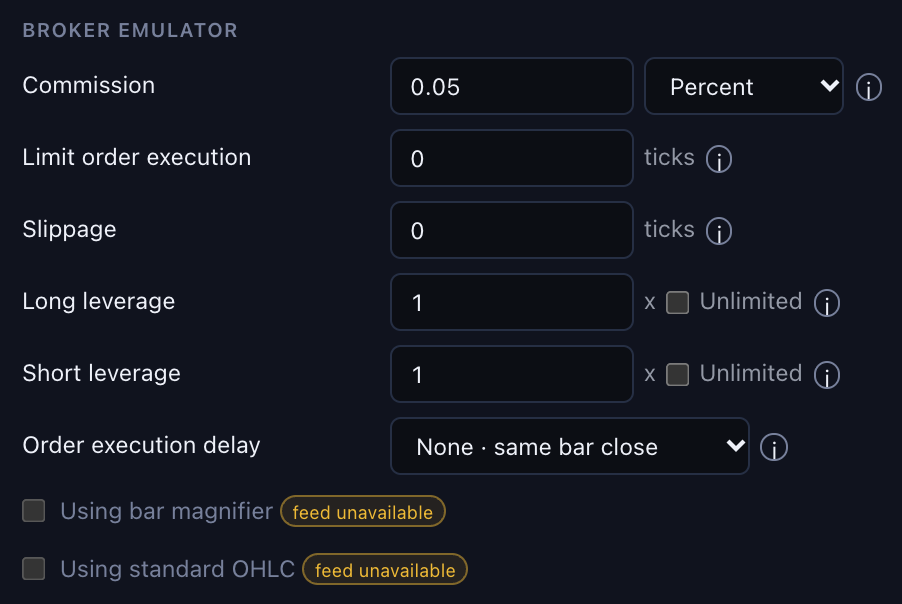
Review costs and fill assumptions before comparing runs. A control marked feed unavailable cannot be used with the current data. Hover over it to see the reason. Select the image to open it at full size.
This capture uses the built-in Trend Participation Filter strategy with Studio’s bundled SPY dataset. The displayed settings and results are examples.
A backtest result holds only for the data and the cost and fill settings it ran with. Check those settings whenever you read the profit figure.
Settings That Change the Result
The rows follow the order of the controls under Broker emulator.
| Setting | What It Does |
|---|---|
| Commission | Fees apply to entry and exit fills. Choose the fee type: Percent, Per contract, or Fixed per order. Percent charges that percentage of each fill's value, which is quantity × price × point value. Net P&L figures in the report already include those costs. The report shows the total as Commission paid. |
| Limit order execution | Enter a number of ticks. Price must move that many ticks beyond your limit before the order is eligible to fill. At a value above 0, the fill uses your requested limit price. At 0, an order can fill at a better eligible opening price. |
| Slippage | The number of ticks added against you to each market and stop order fill. Slippage can move a simulated fill outside the candle’s range. It is a cost you assume, not a spread that was observed in the data. |
| Long leverage and Short leverage | Each direction has its own leverage, entered as a multiple. 1x requires 100% margin and 4x requires 25% margin. To turn margin checks off for a direction, select Unlimited beside its field. The field then shows ∞ Infinity, which matches a margin of 0 in Pine Script. The field does not accept 0. Clear Unlimited to return to 1x. If equity falls below the required margin, Studio closes part or all of the position with a market exit named Margin Call, which appears in the List of trades. See Read Margin Usage. |
| Order execution delay | Choose when a new order can fill. None · same bar close lets a new order fill at the close of the bar that created it (Pine Script's process_orders_on_close). With default bar-close calculation, One tick · next eligible bar makes a new order wait for the next eligible bar's open. Intrabar or fill-triggered calculations can create orders eligible at a later price step in the same bar. Other fill conditions still apply. |
Two checkboxes follow these controls: Using bar magnifier and Using standard OHLC. The next section explains them.
Select Ok to apply your changes.
For a slippage example, assume a symbol's minimum tick is 0.25. A setting of 2 ticks means a 0.50 price adjustment against the trade: a market buy that would fill at 100 fills at 100.50, and a market sell that would fill at 100 fills at 99.50, before commission. The setting is measured in ticks, not percent. Confirm the symbol's tick size before comparing the same numeric setting across markets.
To go back to the script’s default settings:
- Open Defaults at the bottom of the dialog and choose Reset settings.
- Select Ok.
The reset returns the whole dialog to the script’s defaults: Inputs, Properties, Style (including plot overrides and display options) and Visibility ranges. If you select Cancel instead of Ok, Studio discards the reset.
What the Fidelity Notice Means
The Engine fidelity notice appears at the bottom of the strategy report. Its text is the same for every strategy and every setting, so it is not a warning about your run. It lists what some features need from the data. It does not mean that a setting failed.
| Feature in the Notice | Data It Needs | What You See in Properties |
|---|---|---|
| High bar detalization | Lower-timeframe data. The current Studio dataset does not provide it. | Bar detalization, under Detalization and execution, is marked feed unavailable. |
| Bar Magnifier | Lower-timeframe data. The current Studio dataset does not provide it. | Using bar magnifier is marked feed unavailable. |
| Standard-OHLC fills | A separate standard-price feed for synthetic charts. Studio does not provide it. | Using standard OHLC is marked feed unavailable. |
| Realtime-tick recalculation | Realtime ticks supplied by the data source, such as a live chart from the Experimental Real-Time Data Feeds (Max plan). | You can select On realtime bar tick, but it cannot create ticks from historical candles. |
The three controls marked feed unavailable cannot be changed. Hover over one to see its reason.
To close the notice, select ×. Studio does not save this choice, so the notice appears again later, for example after you reload the page.
Compare a Run Fairly
To compare two runs:
- Open the strategy’s Settings, choose Properties, and review capital, position sizing, costs, margin, and execution modes.
- Keep the script inputs, symbol, timeframe, dataset, and testing period the same in both runs.
- Select the Trades tab and inspect a few actual entries and exits in the List of trades.
Different price feeds or simulation settings can produce different trades. These reports describe a run of Studio’s engine. The report layout may look familiar from another platform. That does not mean the fills are identical to fills on that platform or in a live brokerage account.
An Illustrated Example
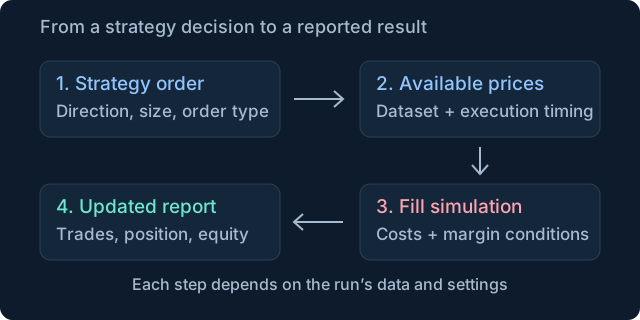
Original illustration using invented values to explain the concept. It shows four steps. Strategy rules produce an order. The dataset and execution timing decide which prices are available. The simulation applies costs and margin conditions to the fill. The report updates trades, position, and equity. Select the image to open it at full size.